How to Remove CapCut Watermark (Free & Legal Methods 2026)
The CapCut watermark you see usually comes from an ending clip or a template element. You can often remove it for free before exporting your video.
This guide shows how to remove the CapCut watermark with safe, official fixes that don’t need unofficial files. We checked the steps against CapCut’s Help Center pages (updated March 2026) on October 3, 2026.
Quick answer: The simplest fix is to delete the CapCut ending clip at the end of your timeline before tapping Export. Templates and premium assets are other possible causes. CapCut Pro covers watermarks tied to premium assets, but you don’t need Pro to delete the standard ending clip.

Key Takeaways
- You can usually export without a watermark after deleting the CapCut ending clip.
- Template logos may appear elsewhere, so check the whole project before exporting.
- Replacing premium stickers, filters, or transitions with free options can avoid asset-related branding.
- CapCut Pro covers premium assets; it isn’t needed to delete the standard ending clip.
- Unofficial APKs and remover websites may create safety or privacy risks. Try the official free methods first.
Where the CapCut Watermark Comes From
You need to find the source before choosing a fix. CapCut doesn’t add branding to every exported video, according to its watermark-free export guidance.
A timeline is the area where you arrange your video clips in order.
A CapCut ending clip appears at the end of the timeline
CapCut can add a short ending clip with its logo. Template projects also include a branded ending clip.
Because this is a separate clip, you can delete it before exporting. Your video will then finish at the last clip you keep.
Templates and premium assets can add branding
A template may also contain a logo inside the video. An overlay is an image or video placed over another clip.
Premium assets are paid editing items, such as stickers or stock footage. Some can add branding in the free version. Stock assets may also require attribution, meaning credit to their source.
Delete or replace the element responsible. If an asset requires credit, keep that credit or choose a different asset.

Method 1: How to Remove CapCut Watermark by Deleting the Ending Clip (Free)
Use this method when the logo appears in a separate clip after your video. Deleting that clip removes its watermark without a Pro subscription.
On Android and iPhone
- Open your project in CapCut.
- Swipe to the end of the timeline, past your own footage.
- Tap the CapCut ending clip to select it.
- Tap Delete to remove that clip.
- Check the timeline for other watermark elements, including logos over your footage.
- Tap Export after checking that your final clip is still present.
Check that you selected the branded ending clip, not the last part of your own video.
On PC
- Move to the last clip on the timeline.
- Select and delete the watermark or ending clip.
- Review all tracks for hidden logo overlays. Tracks are separate rows containing video, audio, or other elements.
- Replace branded template assets if needed, then export again.
A logo on another track needs its own fix, even after you delete the ending. Need the desktop app first? See our guide to CapCut for PC.
On CapCut Online
- Open your template project and scroll to the timeline’s end.
- Find the CapCut-branded ending clip and delete it.
- Check overlay layers for logos. Layers are separate visual elements that can sit above your footage.
- Preview the edit, then click Export.
These steps match CapCut’s watermark removal instructions. Across all three platforms, check the full edit rather than only its final seconds.
Method 2: Edit From Scratch Instead of Using a Template (Free)
You can avoid template branding by building your edit with your own clips, music, text, and effects. This gives you control over the elements in the project.
Templates save time, but they can include a branded ending clip or another logo element. The ending clip is separate from branding placed over your footage, so the fixes differ.
If you’re learning how to use CapCut templates, check what the template adds before exporting. A design that looks suitable may still contain branding at the end. You can browse more styles in our CapCut templates hub.
For a manual edit, use assets you own or have permission to use. Choose free effects if you don’t want premium-asset restrictions.
You don’t need to rebuild every project. When one visible element causes the problem, removing or replacing it may be enough. Starting fresh is useful when several template elements need changing.
Method 3: Swap Premium Assets for Free Ones (Free)
You can avoid some asset-related watermarks by replacing premium items with free options from CapCut’s library. Deleting the standard ending clip doesn’t fix branding attached to a separate premium asset.
A sticker is a graphic added to your video. A transition is an effect between clips, while a filter changes their appearance.
Some premium stickers, transitions, filters, templates, or stock elements can add a watermark or restrict free export.
- Identify the premium item causing the branding or restriction.
- Replace it with a free option from CapCut’s library.
- Review the edit to check how the replacement looks.
- Export again after checking for remaining branding.
Choose a replacement that fits your edit. Removing an effect may change the appearance of nearby clips.
Method 4: Upgrade to CapCut Pro (Official)
CapCut Pro can allow watermark-free export with premium assets covered by the subscription. Consider it when you want to keep an affected premium item rather than replace it.
You don’t need Pro to delete the standard branded ending clip. That clip remains a separate part of your timeline, and deleting it is the direct fix.
Before paying, identify which asset causes the watermark. If a free replacement gives you the result you need, you can use that instead.
CapCut’s export guidance for removing watermarks also recommends checking other project elements. A logo inside a template needs attention even when you’ve dealt with the ending clip.
Choose Pro for the premium assets you need, rather than assuming every watermark requires payment.
Method 5: CapCut Mod APK: Risks and Reality
A mod APK is an unofficial, modified Android app file that CapCut doesn’t make or support. APK means the file used to install an Android app.
You may see promises about free premium access. Those promises don’t prove that a file is safe or that it will remove your watermark.
This site also lists modified builds on its CapCut Mod APK page. Nothing there is official CapCut approval, and no build is promised to remove the watermark.
Unofficial apps may carry harmful code, collect data, or stop working correctly. You also can’t rely on CapCut to support changes made by another party.
Try the official free fixes first. Deleting an ending clip doesn’t require installing another app.
What Not to Do: Cropping and “Watermark Remover” Tools
Fix the source in your project before cropping the video or uploading it to a remover website.
Cropping means cutting away part of the picture. It can remove a corner logo, but it may also cut off faces, captions, or other important details.
Third-party remover tools may blur the area around a logo or reduce video quality. Uploading your footage also gives another service access to that file, which creates a privacy concern.
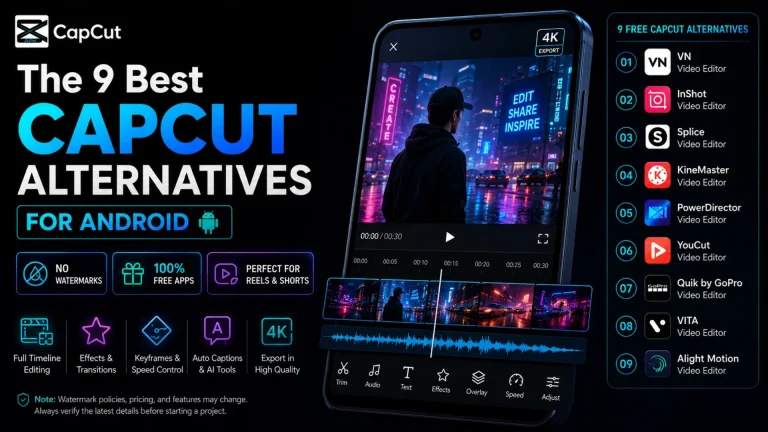
Deleting the ending clip or replacing the branded element avoids those extra steps. Removing branding also doesn’t give you permission to use someone else’s footage or ignore required attribution. If you would rather try another editor, see these free CapCut alternatives for Android without watermarks.
Which Method Should You Use?
Choose the method that matches the source of your watermark.
| Method | Cost | Best for | Catch |
|---|---|---|---|
| Delete ending clip | Free | Logo after your footage | Doesn’t fix other elements |
| Edit without a template | Free | Template branding | More manual editing |
| Swap premium assets | Free | Asset-related branding | Changes the effect |
| CapCut Pro | Paid | Keeping premium assets | Costs money |
| Mod APKs | Unofficial | Not recommended | Safety and support risks |
Start with the free method that fixes the affected element.
If the Watermark Is Still There
Review the project once more before trying another app.
- Check the full timeline, including clips after your main footage.
- Review every track for logo overlays that you may have missed.
- Look for branded template elements within the video, not only at its end.
- Replace affected premium assets with free options if needed.
- Preview the complete video and check where the logo appears.
- Export again after making the changes.
- Contact CapCut’s support team if the watermark remains.
If export fails rather than leaving a logo, that’s a different problem. Refer to the CapCut troubleshooting guide instead of repeating watermark-removal steps.
Frequently Asked Questions
Conclusion
You can usually remove CapCut branding by deleting the ending clip or fixing the specific branded element. Check the source first so you don’t pay for Pro when a free edit is enough.
Open your project and check the end of the timeline before exporting.