CapCut Not Working? 12 Fixes for Android and iPhone (2026)
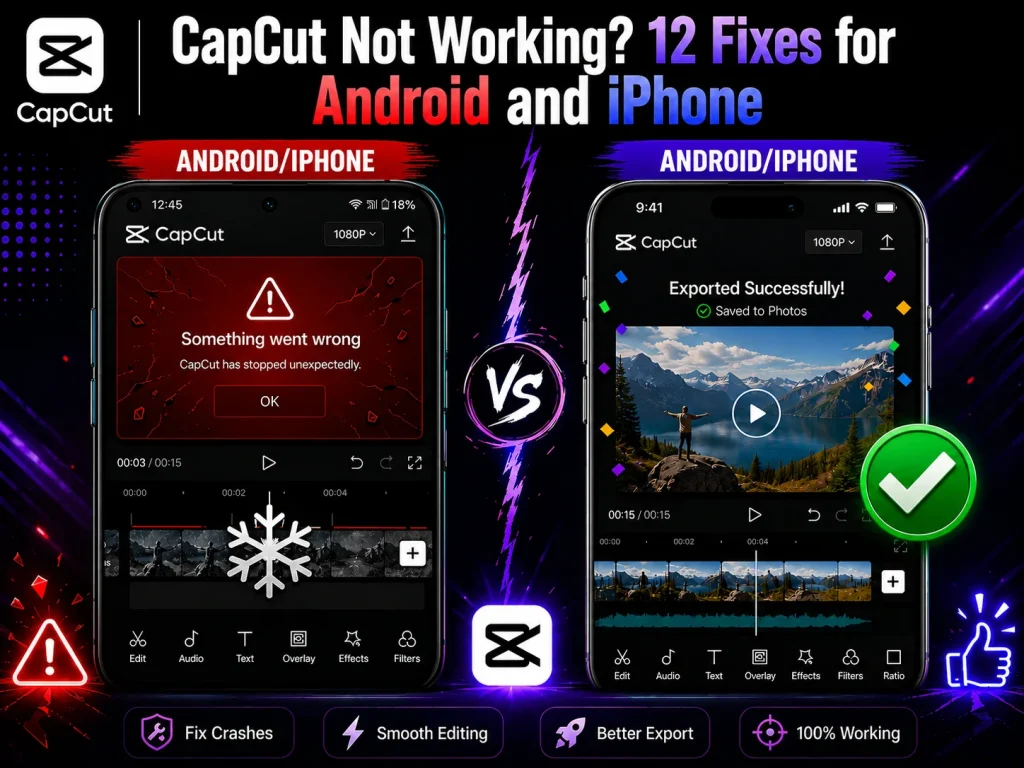
CapCut not working mid-edit is frustrating — but the fix is usually faster than you think. Most crashes, freezes, and export failures come down to a bad cache, an outdated app build, or low storage. This guide walks through 12 fixes in order of speed and simplicity, so you can solve the problem without wasting time on steps that won’t help. If you want the updated and Safe Version of the Latest CapCut APK Version, you can download it from our site.
Key Takeaways
- Start with cache and updates. Most CapCut glitches — crashes, loading loops, black screens — are fixed by clearing the app cache, updating the app, or restarting the phone.
- Storage and memory matter. Export failures and lag are often caused by a nearly full device or too many background apps running at once.
- Network tools cause silent failures. VPNs, proxy apps, and private DNS settings can block templates, logins, and cloud features without showing a clear error message.
- Reinstalling beats patching. If basic fixes don’t work, a clean uninstall and reinstall removes damaged files that survive updates and restarts.
- Some problems aren’t on your phone. If CapCut fails across multiple devices at the same time, check for a server outage before changing anything.
Why Is CapCut Not Working?
When CapCut stops working, the cause almost always fits one of three patterns.
The first is bad app data. A corrupted cache file can make the app freeze on launch, fail to load templates, or crash mid-export. This often happens after a forced close, an incomplete update, or a download that didn’t finish properly.
The second is device-side limits. Low storage, high background app activity, or an outdated operating system can all block features and cause the app to misbehave. CapCut needs room to write cache files, preview clips, and render exports — a tight device slows everything down.
The third is connection or server issues. If CapCut can’t reach its servers, you’ll see login failures, template loading errors, and cloud sync problems. A VPN, weak Wi-Fi, or a platform-wide outage can all cause this.
Once you know which pattern matches your problem, the right fix becomes obvious. Start from the top and work down — the fastest solutions come first.
The 12 Fixes at a Glance
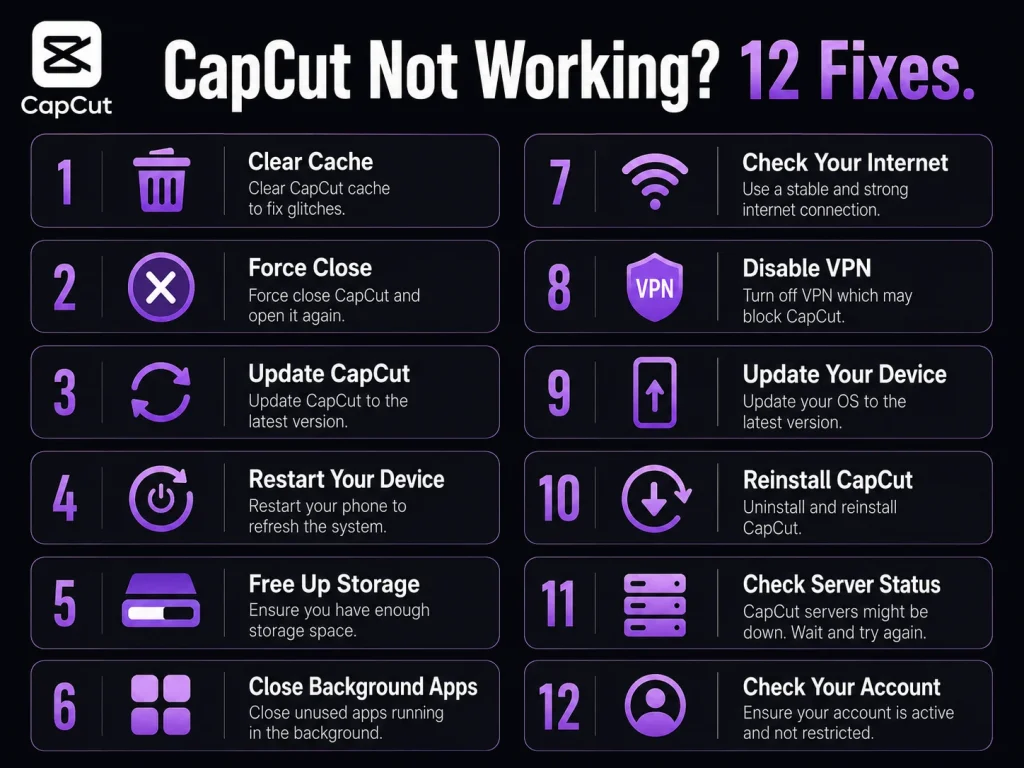
- Clear CapCut’s cache
- Force close CapCut and reopen it
- Update CapCut to the latest version
- Restart your phone
- Free up storage space
- Close background apps
- Check your internet connection
- Turn off VPN, proxy, or private DNS
- Update Android or iOS
- Reinstall CapCut
- Check CapCut’s server status
- Try a different account or roll back the app version
For a step-by-step walkthrough of the most common errors, the CapCut troubleshooting guide covers these repairs in more detail.
Fix 1: Clear CapCut’s Cache
Start here. A corrupted cache is behind more CapCut problems than almost anything else — blank screens, slow loading, random crashes, and failed exports often disappear once the cache is cleared.
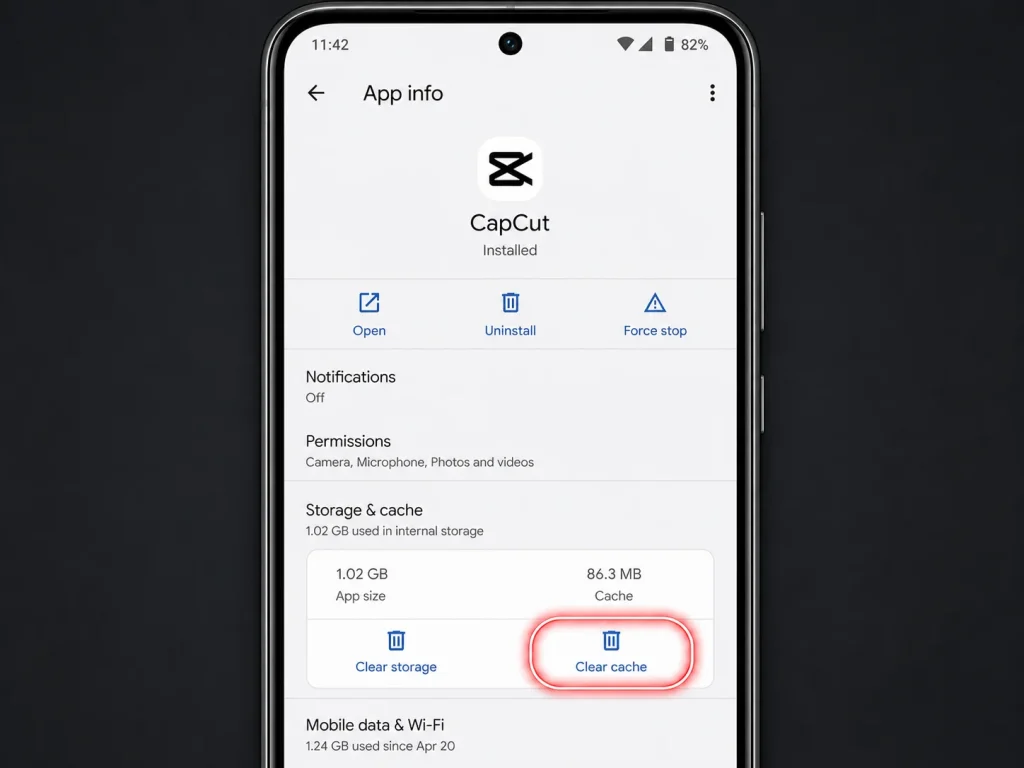
On Android:
- Open Settings and tap Apps (or Application Manager).
- Find and tap CapCut.
- Tap Storage & Cache.
- Tap Clear Cache.
Reopen CapCut and test the same action that was failing.
Note on “Clear Data”: This goes further than clearing the cache — it can reset app settings and may delete locally saved drafts. Only use it if clearing the cache doesn’t help and you’ve backed up your projects.
On iPhone: iOS doesn’t offer a one-tap cache clear for individual apps. Instead, use the Offload App method:
- Open Settings → General → iPhone Storage.
- Find CapCut and tap it.
- Tap Offload App, then confirm.
- Reinstall CapCut from the App Store.
This removes the app and its temporary files but keeps your documents intact — a softer reset than a full delete.
Fix 2: Force Close CapCut and Reopen It
If CapCut is frozen, stuck on a loading screen, or not responding to taps, force closing it gives the app a clean restart.
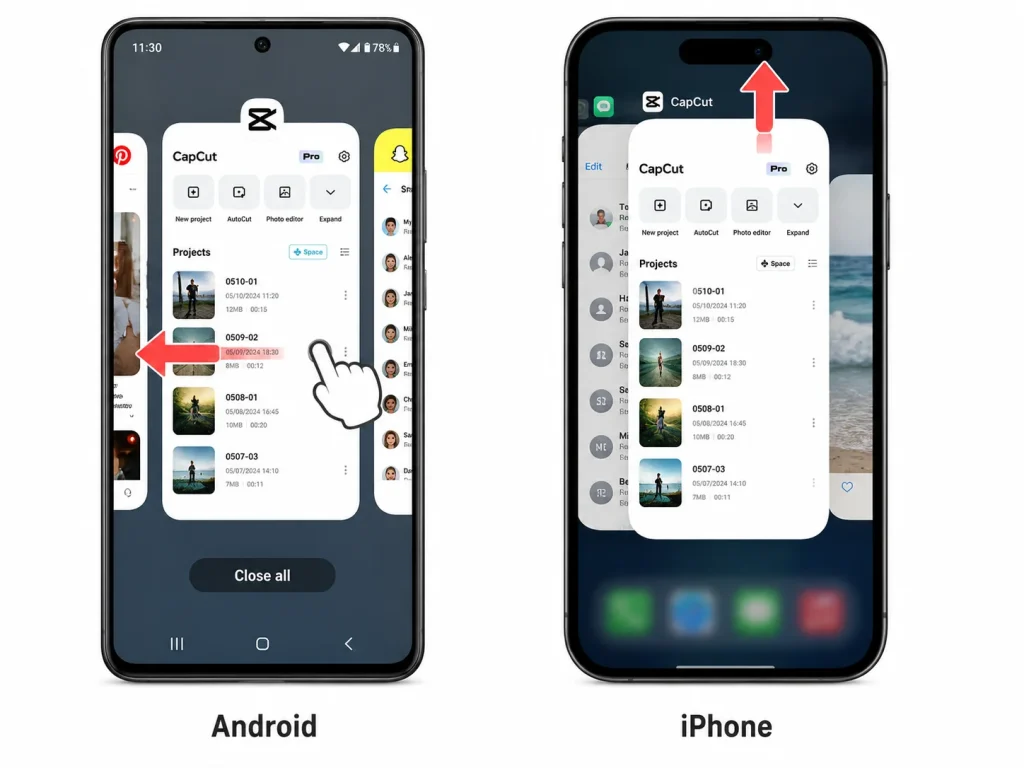
On Android: Open the recent apps screen, swipe CapCut away, then reopen it. Or go to Settings → Apps → CapCut → Force Stop.
On iPhone: Swipe up from the bottom of the screen (or double-press the Home button), swipe the CapCut card upward to close it, then tap the icon to reopen.
This is the right first move when the app is visually stuck but hasn’t crashed outright.
Fix 3: Update CapCut to the Latest Version
An old app build is one of the most overlooked causes of crashes and feature failures. CapCut updates frequently, and older versions can break after a new iOS or Android update changes how the system handles media, permissions, or background processes.
On Android: Open the Google Play Store, search for CapCut, and tap Update if one is available.
On iPhone: Open the App Store, tap your profile icon, scroll to Pending Updates, and update CapCut.
After updating, reopen CapCut and test the project or action that was failing. If a recent update introduced the bug rather than fixed it, see Fix 12 below.
Fix 4: Restart Your Phone
A full device restart clears memory, ends stuck background processes, and resets network connections — all in one step. This is especially useful when more than one app is misbehaving, your keyboard feels sluggish, or the phone has been running for days without a reboot.
Restart the phone, not just the app, and then open CapCut before doing anything else. Testing it fresh often reveals whether the problem was a memory issue or something specific to the app itself.
Fix 5: Free Up Storage Space
CapCut needs free storage to write cache files, store preview frames, and complete exports. When storage is nearly full, exports stall, projects refuse to open, and the app can crash mid-render.
Check your available storage and aim for at least 2–3 GB free before editing or exporting:
- Delete videos you no longer need
- Remove unused apps
- Clear large downloads or screenshots
- Move files to cloud storage or a computer
On Android, go to Settings → Storage to see what’s taking up the most space. On iPhone, Settings → General → iPhone Storage shows a breakdown by app and category.
Fix 6: Close Background Apps
Too many open apps consume RAM, leaving CapCut with less memory for previews, effects, and rendering. On older devices especially, this can cause stuttering, slow exports, and mid-edit crashes.
Close everything you’re not actively using, then reopen CapCut and test the same project. If performance improves significantly, background memory pressure was part of the problem.
Asurion’s Android crash guide also lists memory pressure as one of the most common causes of app instability — closing apps is a quick and risk-free test.
Fix 7: Check Your Internet Connection
CapCut relies on a network connection to load templates, sync cloud projects, process logins, and download assets. A weak or blocked connection can make the app appear broken when the actual problem is your network.
Try these steps in order:
- Toggle Airplane Mode on, wait five seconds, then turn it off.
- Switch from Wi-Fi to mobile data (or vice versa) and reopen CapCut.
- Move closer to your router if signal is weak.
If CapCut works on one connection but fails on another, the issue is network-related. If it works on mobile data but not Wi-Fi, check your router settings for content filters or firewall rules that might be blocking CapCut’s servers.
Fix 8: Turn Off VPN, Proxy, or Private DNS
VPNs and proxy tools route your traffic through external servers, which can interfere with CapCut’s connection to its own servers. Private DNS settings — especially custom DNS providers — can have the same effect. When this happens, you’ll typically see template loading failures, a “no internet connection” error inside the app, or login screens that hang indefinitely.
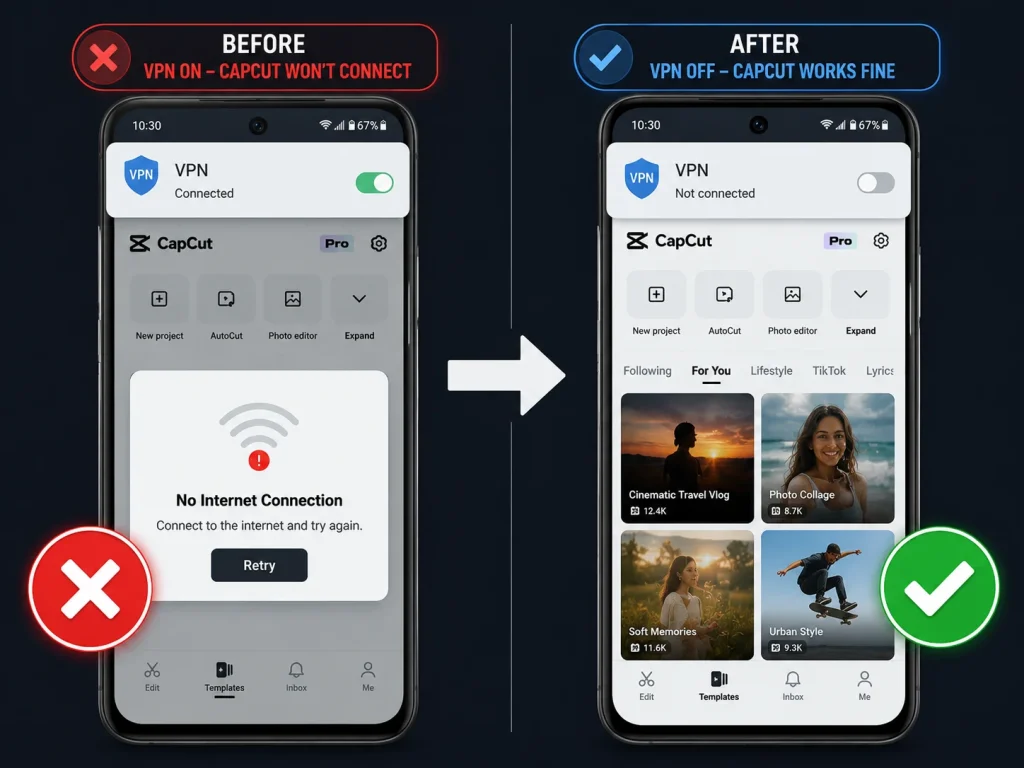
On Android: Go to Settings → Network & Internet → Private DNS and set it to Automatic. Then disable any active VPN from the same Network menu or from the VPN app itself.
On iPhone: Go to Settings → VPN and toggle it off. For DNS, go to Settings → Wi-Fi, tap the ⓘ next to your network, and check the DNS field — switch it back to automatic if a custom server is listed.
Disable one setting at a time, reopen CapCut, and test after each change to identify which one is causing the problem.
Fix 9: Update Android or iOS
An outdated operating system can cause app instability, especially after CapCut updates to use new platform APIs or media capabilities that older OS versions don’t support.
On Android: Go to Settings → System → System Update.
On iPhone: Go to Settings → General → Software Update.
Install any available update, restart the phone, then reopen CapCut. This fix matters most when CapCut started failing after an app update — the newer app version may require a more recent OS.
Fix 10: Reinstall CapCut
If the app still won’t behave after the fixes above, a clean reinstall is the most reliable next step. It removes damaged app files, failed update remnants, and broken configurations that a normal restart won’t touch.
Before you start: Back up any locally stored projects. Drafts saved inside CapCut may be removed during a full uninstall.
On Android: Long-press the CapCut icon → Uninstall → confirm → reinstall from Google Play.
On iPhone: Long-press the icon → Remove App → Delete App → reinstall from the App Store.
Sign back in after reinstalling and test the same project or action that was failing. A fresh install frequently resolves persistent crashes and export errors that survive updates.
Fix 11: Check CapCut’s Server Status
Not every CapCut problem is on your device. If the app is having a platform-wide outage, no amount of cache clearing or reinstalling will fix it — the only solution is to wait.
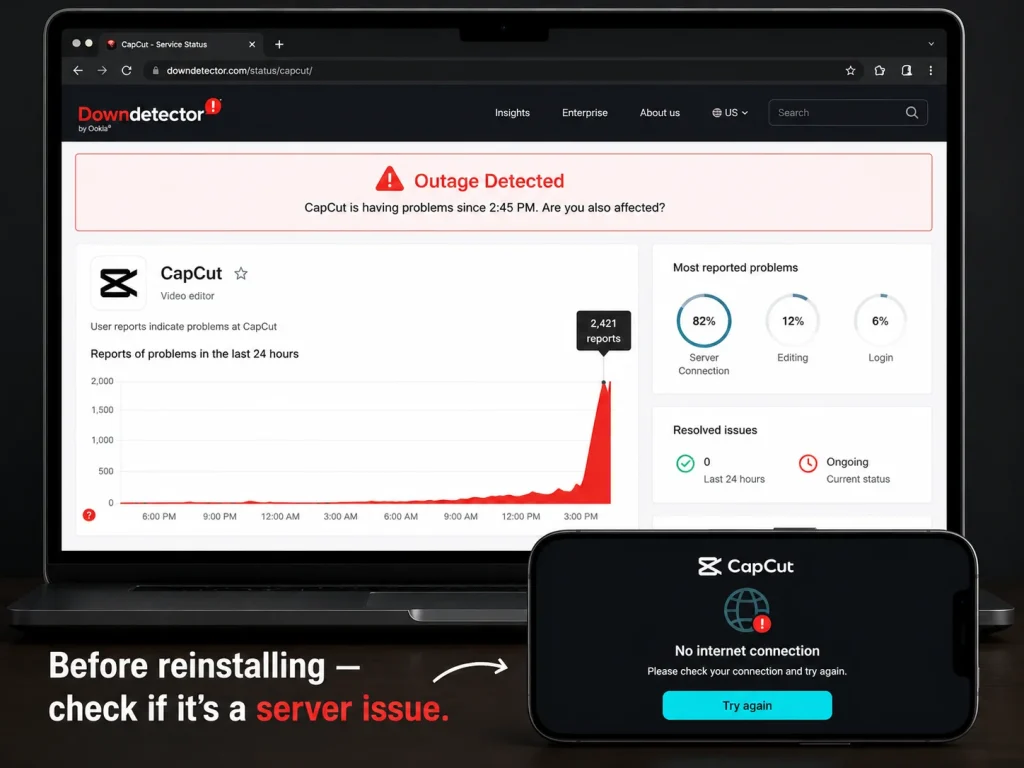
Check CapCut outage reports on Downdetector to see if other users are reporting the same problem. You can also search “CapCut down” on Twitter/X for real-time reports.
Signs the problem is server-side:
- CapCut fails on multiple devices at the same time
- The issue appeared suddenly without any changes on your end
- Other users in online forums are reporting the same error
If it’s a server issue, wait an hour and try again. Avoid repeatedly reinstalling the app — that won’t help and wastes time.
Fix 12: Try a Different Account or Roll Back the App Version
Login issues: If CapCut lets you in with a different account but fails with yours, the problem is account-specific rather than device-specific. Try logging out and back in, resetting your password, or checking whether your account is flagged or restricted.
Version rollback: Occasionally a new CapCut update introduces a bug that breaks the app on certain devices before the next patch lands. If CapCut worked fine before a specific update, rolling back to a stable older version can restore functionality.
On Android, you can sideload an older APK from a trusted source. On iPhone, rolling back is harder — the cleanest option is to stay on the current version and wait for the next update, or report the issue through the app so it gets flagged for a fix.
Device-Specific Tips
Android
The most common Android-specific causes are permission blocks and battery optimization settings.
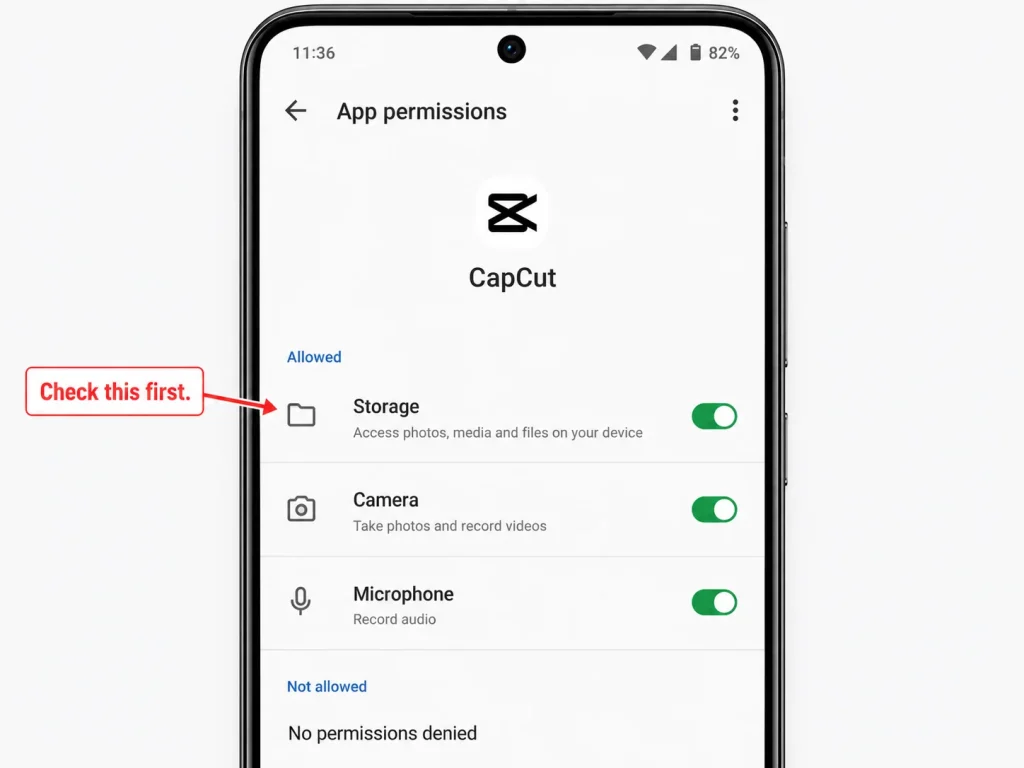
Go to Settings → Apps → CapCut → Permissions and confirm that Storage, Camera, and Microphone are all allowed. Then check Battery settings and make sure CapCut isn’t restricted from running in the background — this often cuts off exports and uploads the moment your screen turns off.
For a full walkthrough, Android battery optimization settings explains how to exempt specific apps from power management.
iPhone
On iPhone, use Offload App before reaching for a full delete. It clears the install and temporary files but preserves your documents, so you don’t lose project data unnecessarily. Only delete the app completely if offloading doesn’t resolve the issue.
Go to Settings → General → iPhone Storage → CapCut → Offload App.
PC (CapCut Desktop)
On Windows and macOS, start by updating the app and then installing any pending system updates. If you’re seeing black previews or slow playback, your graphics driver may need updating. Try toggling Hardware-Accelerated Encoding in CapCut’s settings to see if that improves performance. Always restart your computer after making changes before deciding they didn’t work.
Export, Template, and Editing Errors
If CapCut fails specifically during export or while loading templates, the project itself may be the problem rather than the app.
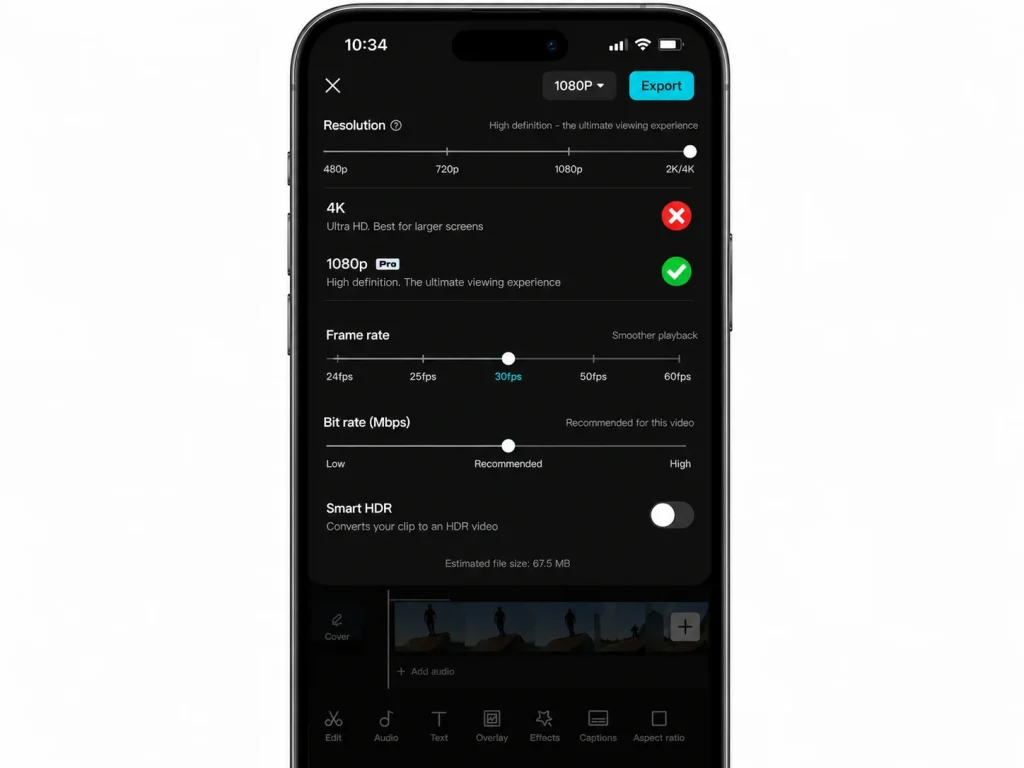
Lower the export resolution first. If 4K fails, drop to 1080p and 30fps. CapCut’s own export help page recommends this as the first step for export failures, since lower settings use significantly less processing power.
Split large projects. Very long timelines, many clips, and stacked effects can overwhelm older phones. Edit in sections and export each part separately, then combine them afterward.
Remove heavy effects. Complex filters, stickers, and transitions slow render times dramatically. Remove the heaviest effects, test the export, and add them back one by one to find what’s causing the failure.
If none of this helps, contact CapCut support with the exact error message and your device model.
Frequently Asked Questions
Why does CapCut keep crashing right after I open it? This usually points to a bad cache file, a failed update, or low available memory. Force close the app, restart your phone, clear the cache, and update CapCut in that order. If it still crashes, a reinstall is the most reliable next step.
Why is CapCut stuck on a loading screen or showing a blank screen? A loading screen that never ends means CapCut can’t pull data fast enough — weak internet, a blocked network, or damaged app files are the usual causes. Switch between Wi-Fi and mobile data to rule out the connection, then try a reinstall if the problem persists. Also check Downdetector to confirm it’s not a server outage.
Why won’t CapCut export my video? Export failures are almost always caused by one of three things: insufficient storage, export settings that are too demanding for the device, or a project that’s too heavy. Lower the resolution to 1080p and the frame rate to 30fps, free up storage, and remove the most resource-intensive effects. See the export section above for the full fix.
Why does CapCut say “no internet connection”? This error appears when CapCut can’t reach its servers, even if your phone shows a normal connection. Turn off any VPN or proxy tools first, then switch between Wi-Fi and mobile data. Private DNS settings can also trigger this — set DNS to Automatic and test again.
Is CapCut down for everyone, or is it just my phone? If the problem appeared suddenly and affects multiple devices, it may be a platform-wide outage. Check CapCut on Downdetector or search for recent reports online. If it’s only your device, work through the fixes above starting with cache and reinstall.
What if nothing works? Update your phone’s operating system, check storage and permissions, and test with a simpler project on a shorter timeline. If the issue is specific to one project, the file itself may be corrupted. Start a new project to confirm, then reach out to support with details on your device and the exact error.
Conclusion
When CapCut is not working, the fix is almost always one of three things: clear the cache, update the app, or reinstall it. Those steps resolve the vast majority of crashes, loading failures, and export errors on both Android and iPhone.
Work through the 12 fixes in order, starting from the top. Each one takes less than a minute and the most common causes are covered in the first four. If you get through all 12 and CapCut still misbehaves, the problem is either account-specific, tied to a recent bad update, or a temporary server issue — none of which require you to do anything drastic on your device.
For a visual walkthrough of the most common errors, this CapCut not working tutorial follows the same repair sequence.