CapCut AI Features 2026: Every Tool Explained (With Examples)
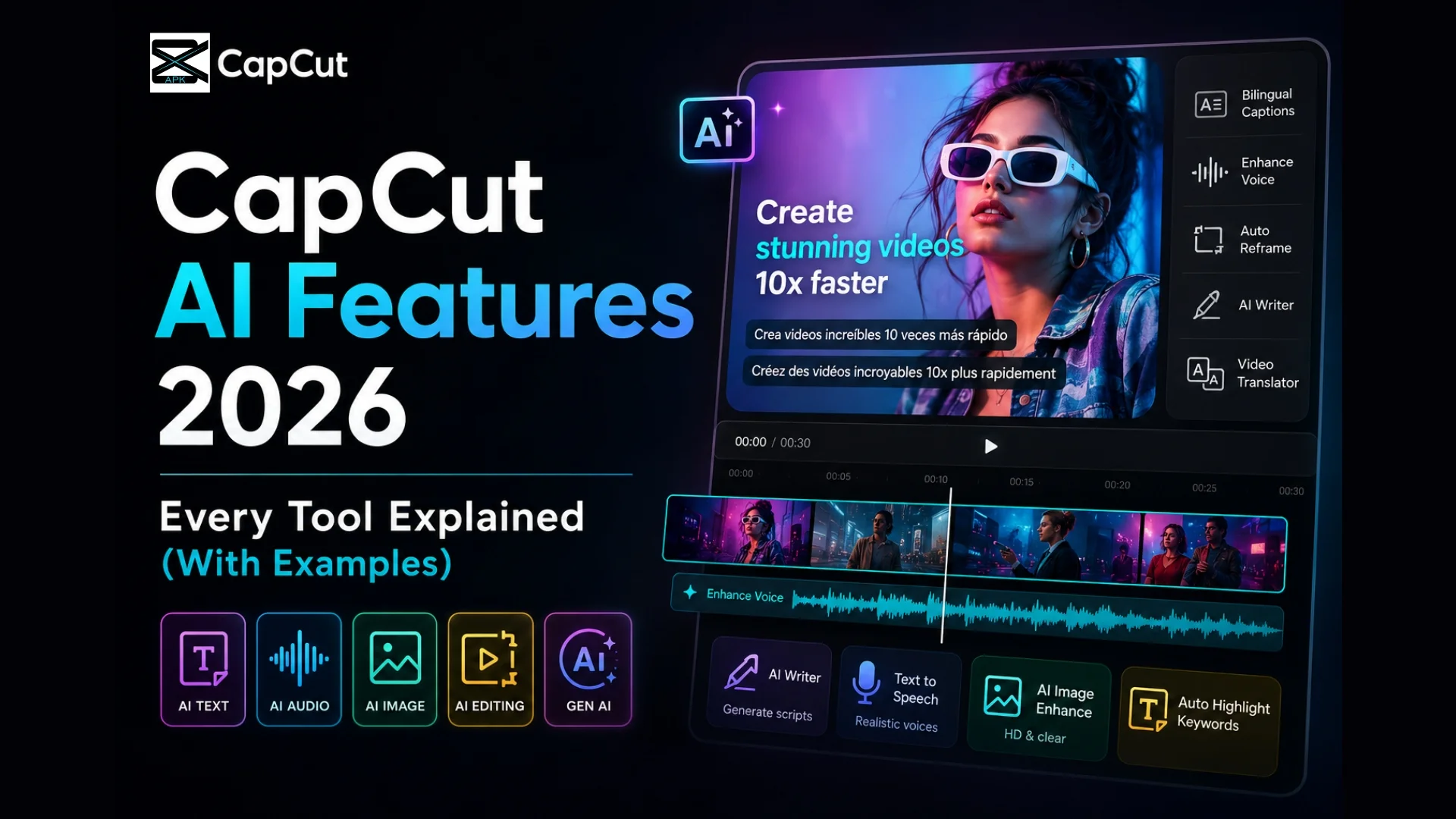
Most people use maybe three of CapCut’s AI tools. There are thirteen. Hiding in that gap is the difference between an edit that takes all afternoon and one that’s done before your coffee cools. The 2026 build writes your captions, scrubs your audio, relights a badly shot frame, and can even clone your voice to fix a flubbed line — no reshoot, no studio, no second take. This guide cracks open the full toolkit, category by category, with a real example for every feature. Find the two or three that kill your biggest bottleneck, and let the rest quietly handle the busywork.
Introduction
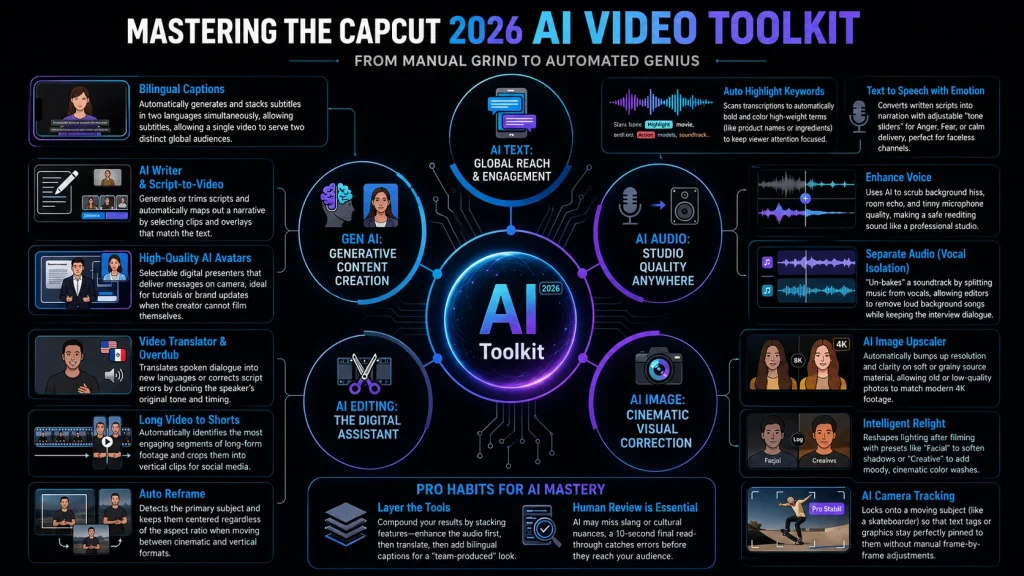
Whether you are a mobile creator or working on high-end desktop projects, these tools are built to automate the tasks you once dreaded. We have categorized every feature by function so you can immediately identify which ones will save you the most time and which ones will elevate your content quality to professional standards. Let us dive into the toolkit that is currently reshaping how creators work.
Key Takeaways
- CapCut’s AI features are categorized into five buckets: AI Text, AI Audio, AI Image, AI Editing, and Gen AI. Each tool is designed to simplify the content creation process and streamline every part of the video editing grind.
- Captions and language tools have gone global. Features like Bilingual Captions and the efficient Video Translator allow a single clip to reach two distinct audiences without the need for manual retyping.
- Voice tools are the sleeper hits of the platform. Enhance Voice, Overdub, and Text to Audio help fix poor recordings and clone your vocal delivery. A noisy phone microphone no longer has to ruin an otherwise great take.
- Image tools now rival standalone professional editors. Enhancement, Relight, and Camera Tracking allow you to pull off cinematic tricks that previously required expensive, complex software.
- Gen AI tools write for you. The AI Writer can expand a thin script or trim a bloated one with a single click.
- Most of these tools live in the free app, though some advanced polishing features are reserved for CapCut Pro. If you are curious about where that line falls, the CapCut Mod vs Pro breakdown explains how these tools help you produce high-quality videos.
Why CapCut Leaned So Hard Into CapCut AI Features
Video editing has a persistent bottleneck, and it is never the creative ideas. It is the labor. Typing captions line by line, re-recording a muffled voiceover, and hunting for the one clip where the lighting looks right are the tasks where hours vanish. CapCut AI features exist to swallow those hours whole, transforming the platform into a powerful AI video editor that streamlines the entire workflow.
Think of it like hiring a small crew that never sleeps. One member writes your captions in two languages. Another cleans up your audio. A third relights a shot you filmed at the wrong time of day. You stay the director; the AI handles the tedious aspects of video editing. That is the core value proposition, and in 2026, it finally delivers on its promise.
Below, each category gets its own section. The tools inside are explained plainly, with an example you can picture. Let us dig in.
AI Text: Captions and Copy That Write Themselves
Text is often the first element viewers notice and the last thing editors want to spend time typing. This category hands those tedious tasks over to the machine, streamlining your entire content creation workflow.
Auto Captions
Auto Captions is the feature that turned subtitling from a chore into a single tap. Point CapCut at any clip with speech and its AI listens, transcribes, and times every line for you, dropping ready-to-style text straight onto the timeline. No pausing every few seconds to type. No dragging caption blocks into place by hand. The tool handles the heavy transcription work while you stay focused on the parts of editing that actually need a human eye. For anyone who has ever spent an hour captioning a two-minute reel, that time saving lands like a small miracle. If a line comes out wrong, CapCut’s own help page explains how to fix inaccurate auto-captions.
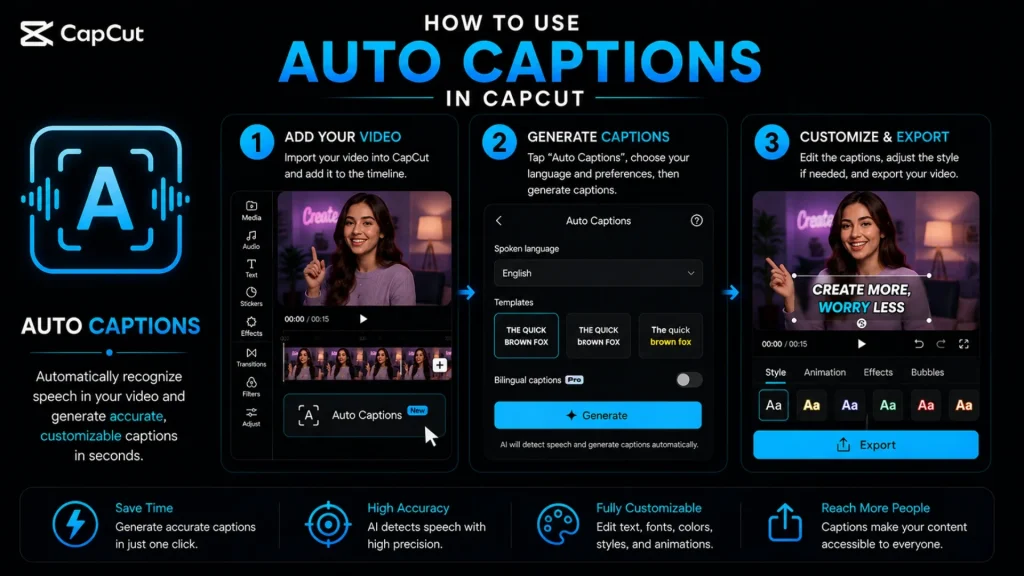
Picture a podcaster clipping a 45-minute episode into shareable snippets. Manually typing out every quote would eat the better part of a morning. With Auto Captions, the words appear in seconds, synced to the audio, and all that is left is a quick read-through to fix a mangled name or an odd bit of slang. It matters beyond convenience too, since roughly 85% of social video gets watched on mute. Captions are how your message survives a silent scroll. Pair Auto Captions with Auto Highlight Keywords and your text does not just show up on screen; it grabs the eye and holds it.
Auto Lyrics
Auto Lyrics is Auto Captions’ musical cousin, built for the moment your video leans on a song instead of speech. Feed CapCut a clip with music and its AI listens to the vocals, pulls the words, and syncs them to the beat automatically. No hunting down lyric sheets. No nudging each line to land on the right note. The tool times everything to the track so your text hits in rhythm, which is exactly what makes a lyric video feel alive rather than stapled together. What used to demand painstaking manual timing now takes a tap and a quick review.
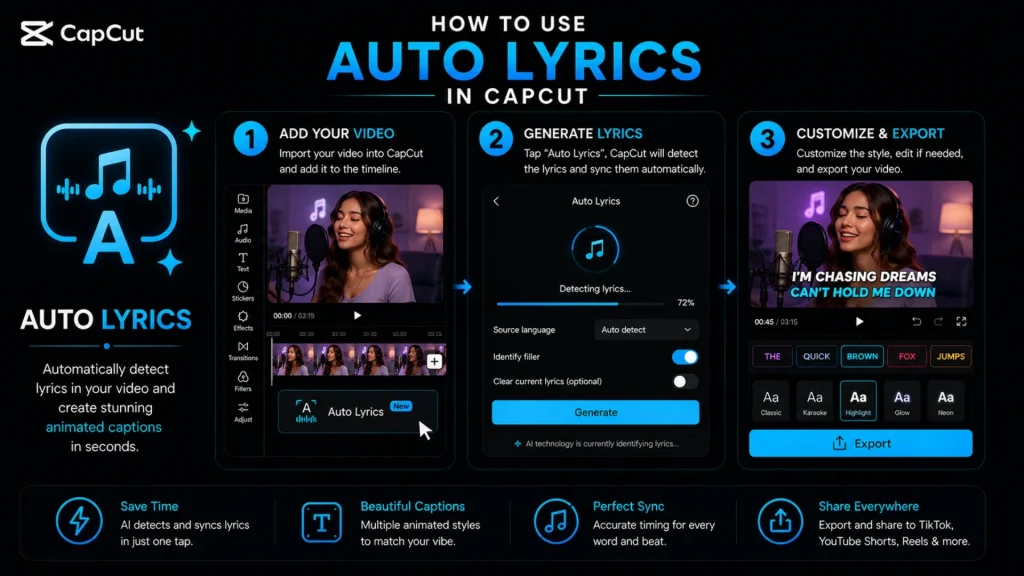
Think of a creator building a moody edit around a trending audio. Typing out every lyric and matching it to the melody by hand would burn an evening easily. Auto Lyrics does the grunt work in seconds, dropping beat-synced words onto the timeline ready to style. It is a gift for music montages, dance clips, and those aesthetic edits where the words are half the appeal. Just give the output a once-over before you export, since fast or mumbled vocals can trip up any AI. Layer in a bold font and a slick animation, and a plain clip turns into something viewers actually want to rewatch.
Bilingual Captions
Bilingual Captions generates subtitles in two languages at once, stacked on the same clip. By using these auto captions, you simply pick your source language and a target language; CapCut transcribes the audio and translates it instantly, removing the need for a second pass or manual timing.
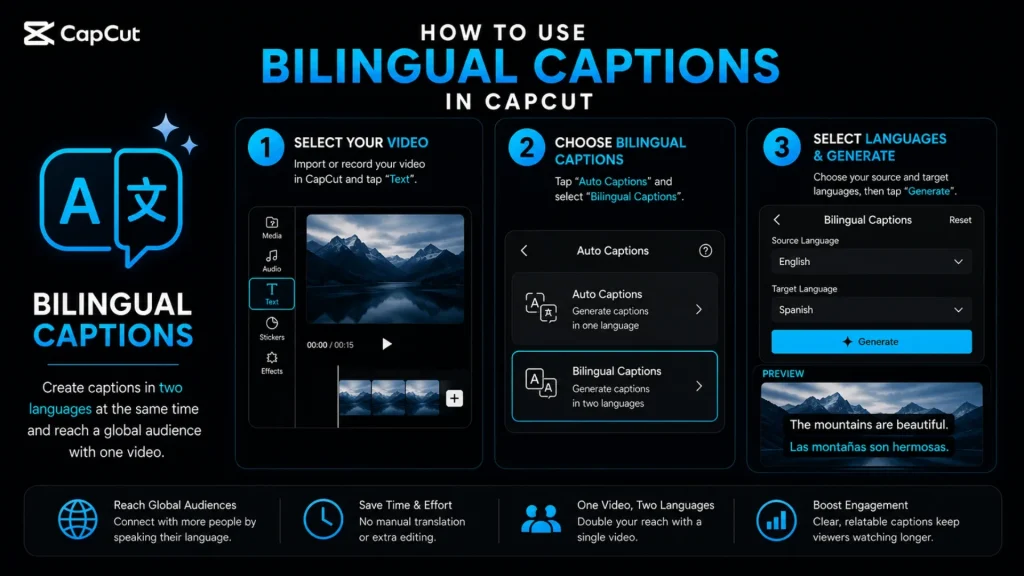
Picture a food creator in Mumbai. Half her audience speaks Hindi, and the other half speaks English. Instead of publishing two versions of the same social media content, she runs Bilingual Captions and ships one video that serves both crowds. The reach effectively doubles for the price of a single upload. For creators chasing a border-crossing audience, this alone justifies using the app.
Auto Highlight Keywords
Ever notice how the best captioned videos make one word pop; bold, colored, and impossible to scroll past? Auto Highlight Keywords does that hunting for you. It scans your caption text, spots the terms carrying the most weight, and highlights them automatically.
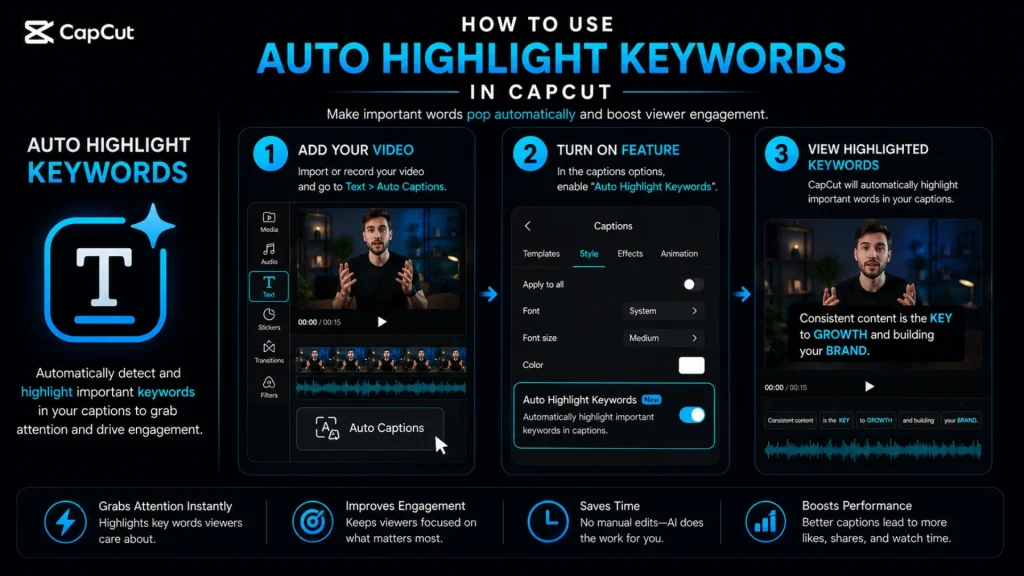
Say you are editing a skincare tutorial. The AI catches words like “retinol,” “hydration,” and “SPF” and lifts them off the screen while the filler fades back. Your viewer’s eye lands where it should, and you did not have to tap a single word by hand.
Text to Speech
Text to Speech flips the usual flow. Rather than transcribing speech into text, it reads your written text aloud in a synthetic voice. Here is the twist: you can dial the emotion. Sliders for tones such as Anger, Fear, and other delivery styles let you shape how the line lands.
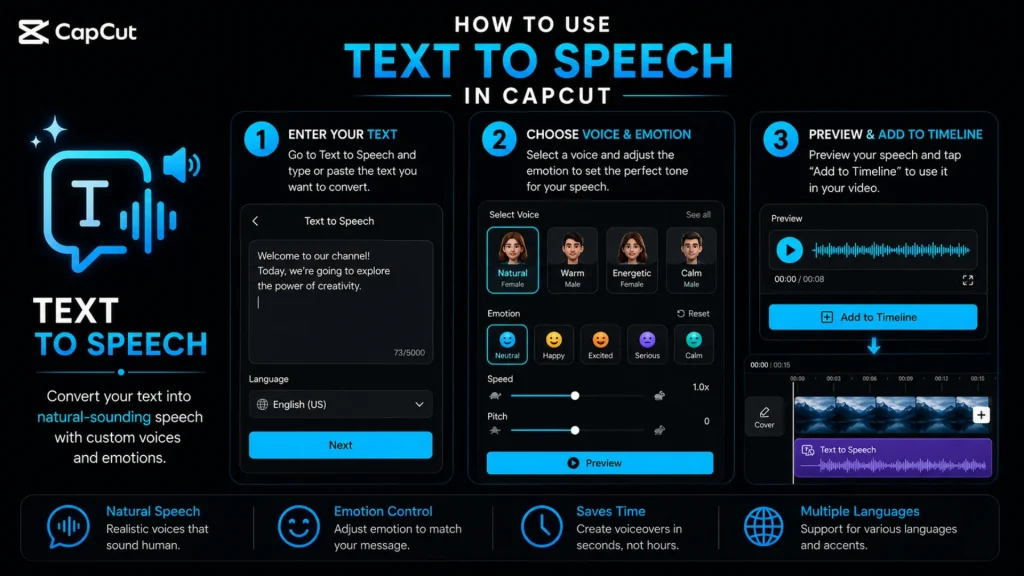
Imagine a faceless horror-story channel. The creator types the script and cranks the Fear tone. Out comes a trembling narrator without anyone stepping near a microphone. Explainer channels use the calmer settings for clean, steady narration. It is essentially a professional voiceover booth that fits in your pocket.
AI Audio: Clean Sound Without a Studio
Bad audio kills a good video faster than bad footage ever will. Viewers forgive a shaky shot, but they bail on a muddy one. These two tools rescue the soundtrack.
Enhance Voice
Enhance Voice uses AI to scrub, sharpen, and lift a recorded voice. Background hiss, room echo, and that tinny phone-mic quality are no match for this tool, as it works to strip the junk and push the vocals forward. Functioning much like a high-end AI voice generator, it transforms raw recordings so that your speech sounds like it came from a professional studio setup.
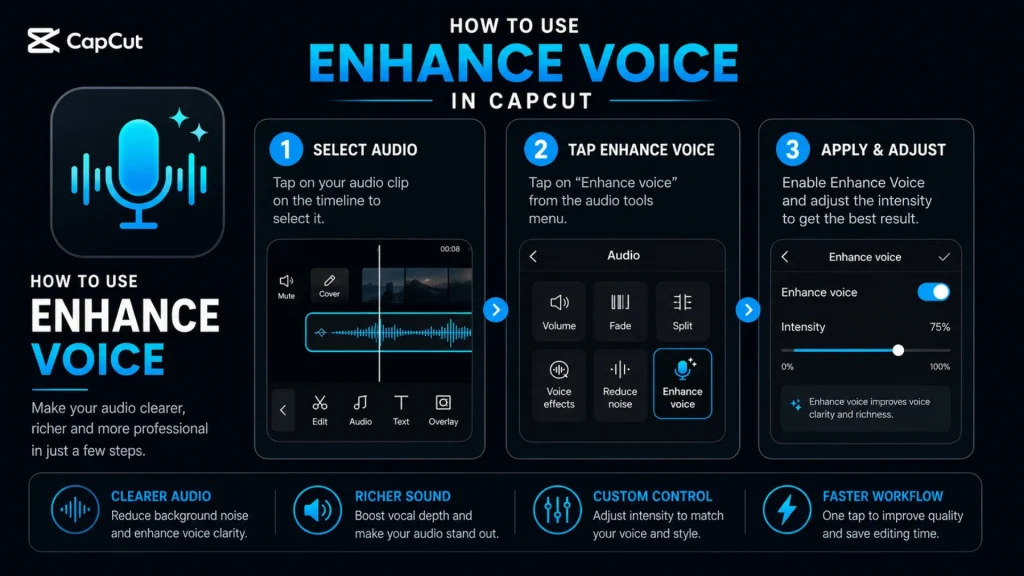
Here is a common save. You filmed a great talking-head clip in a cafe, but an espresso machine hums under every sentence. One tap of Enhance Voice and the rattle drops back while your words step forward. The take you almost trashed is suddenly usable.
Separate Audio
Separate Audio splits a single track into its parts, pulling vocals away from music or isolating layers that were baked together. Once they are separated, you can mute, swap, or remix each piece on its own. This capability is a game changer for professional video editing, giving you total control over your sound design.
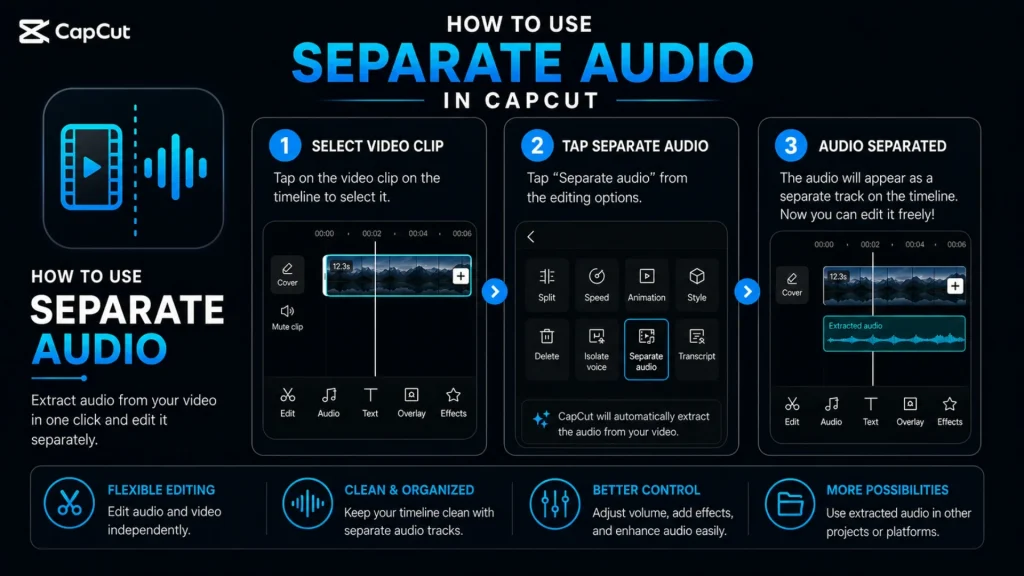
A quick example: you recorded a street interview, but a song blasting from a nearby shop drowns out half of it. Separate Audio lets you yank the music out and keep the voice, then drop in a lighter background track that does not fight your subject. It is the closest thing to un-baking a cake that editing offers.
AI Image: Cinematic Tricks on Autopilot
Not every frame comes off the camera looking finished. This set of tools fixes resolution, lighting, and movement, which are the three pillars that separate amateur footage from the polished, high-quality videos you see from professional creators.
AI Image Upscaler
The AI image upscaler bumps up the resolution and overall clarity of an image automatically. Soft, grainy, or low-res source material gets sharpened and cleaned, which is a lifesaver when you are stuck with whatever footage you have on hand.
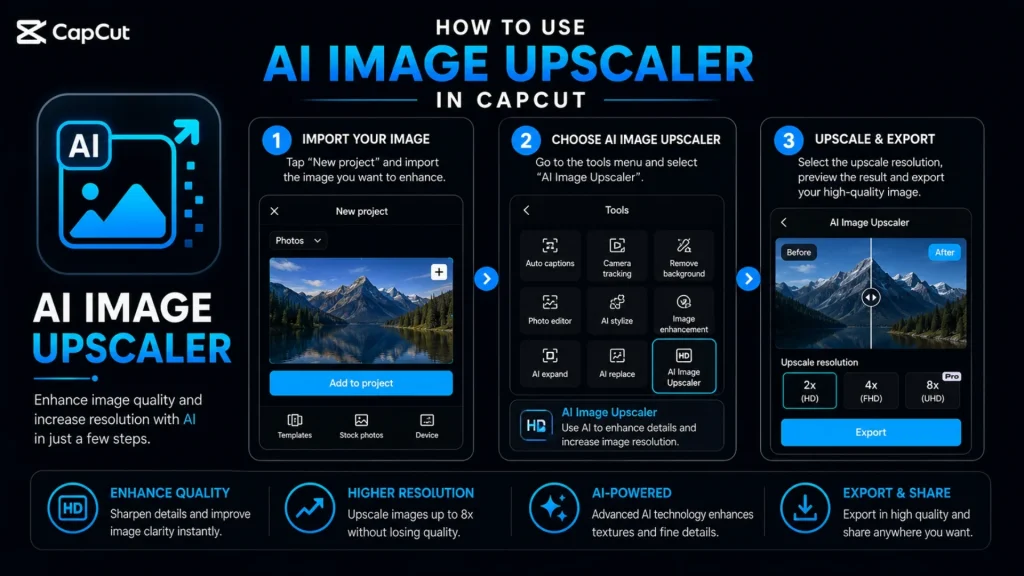
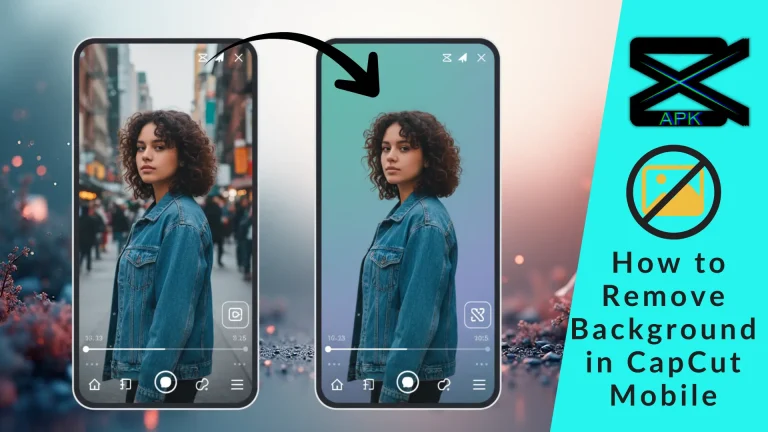
Think of an old family photo you want to fold into a montage. It is fuzzy and small. Run it through the AI image upscaler and the detail firms up enough to sit beside modern clips without looking like it wandered in from 2009. While you are refining your visuals, do not forget the background remover tool, which allows yAI Editing
ou to strip away distracting environments to focus entirely on your subject.
Relight
Relight is the show-off of the group. It reshapes the lighting in an image after the fact, with presets for Facial, Ambient, and Creative looks. Filmed in flat, gloomy light? Add warmth. Want a moody cinematic wash? The Creative preset paints it on.
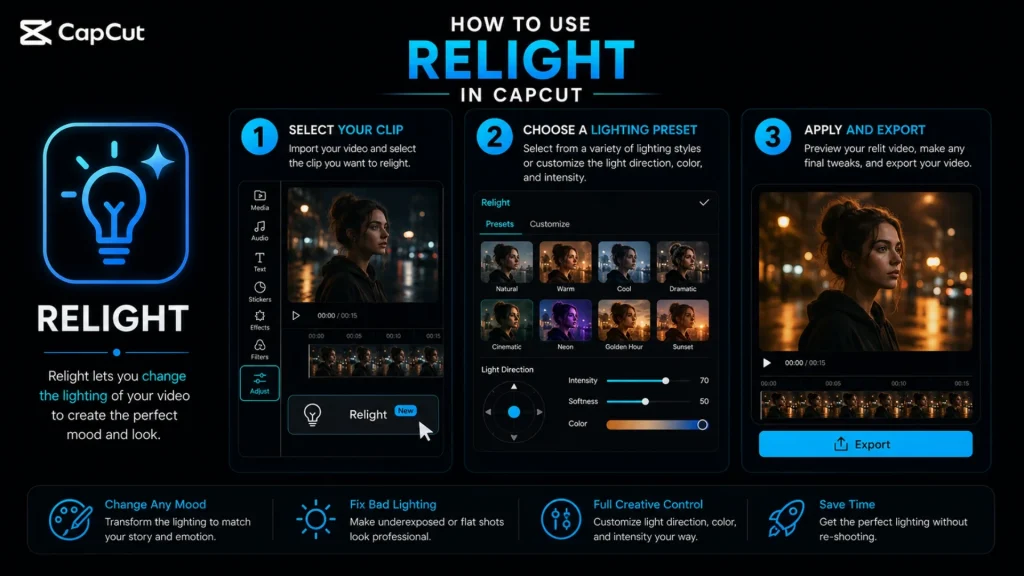
Portrait creators lean on the Facial setting to flatter a subject’s features, softening harsh shadows the way a ring light would. Ambient smooths the overall mood of a scene, while Creative goes bold for stylized edits. You are basically moving the sun around long after the shoot wrapped.
Camera Tracking
Camera Tracking uses AI to follow a subject’s movement through the frame. Lock onto a person, a car, or a dancing pet, and the tool keeps tabs on it as it travels. That is the groundwork for effects, text, or graphics that stick to a moving target.
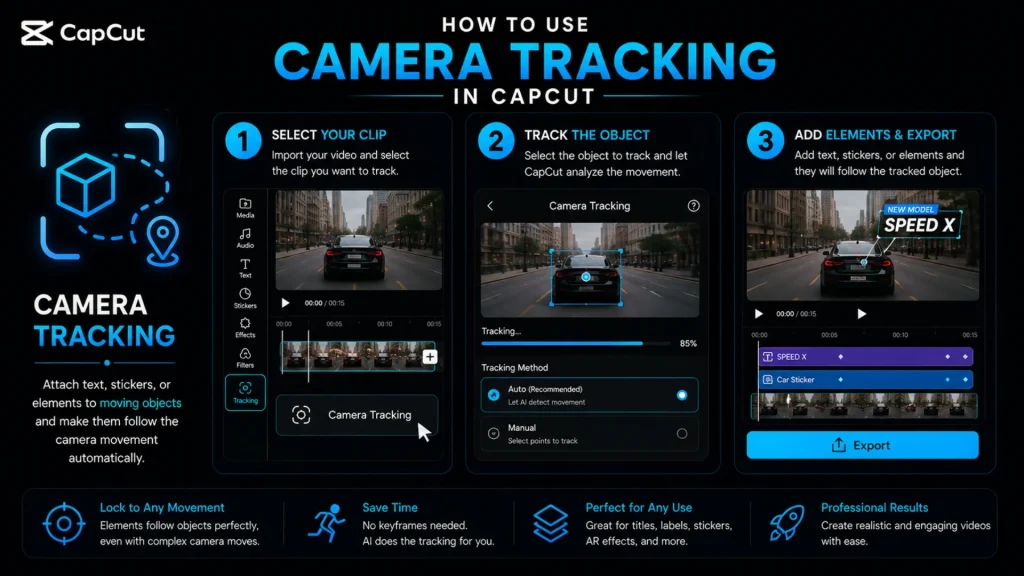
For instance, you might want a name tag hovering over a skateboarder as he rolls across the shot. Camera Tracking pins the label to him so it glides along in perfect sync, no frame by frame nudging required. It is the kind of effect that used to eat an entire evening. Now it is just a quick setup and a sip of coffee.
AI Editing: Your Post-Production Assistant
This is the heavy-lifting category. These are the tools that touch the whole video rather than just one clip. If AI Text and AI Audio are specialists, these are the generalists that reshape the entire edit. Because these tools require significant processing power, you will often find that CapCut desktop is the best place to handle this heavy lifting.
Video Translator
The AI video translator automatically translates the spoken content of a video into another language. It does more than generate subtitles; it replaces the actual dialogue. It acts as a bridge that carries your message to viewers who do not speak your native language.
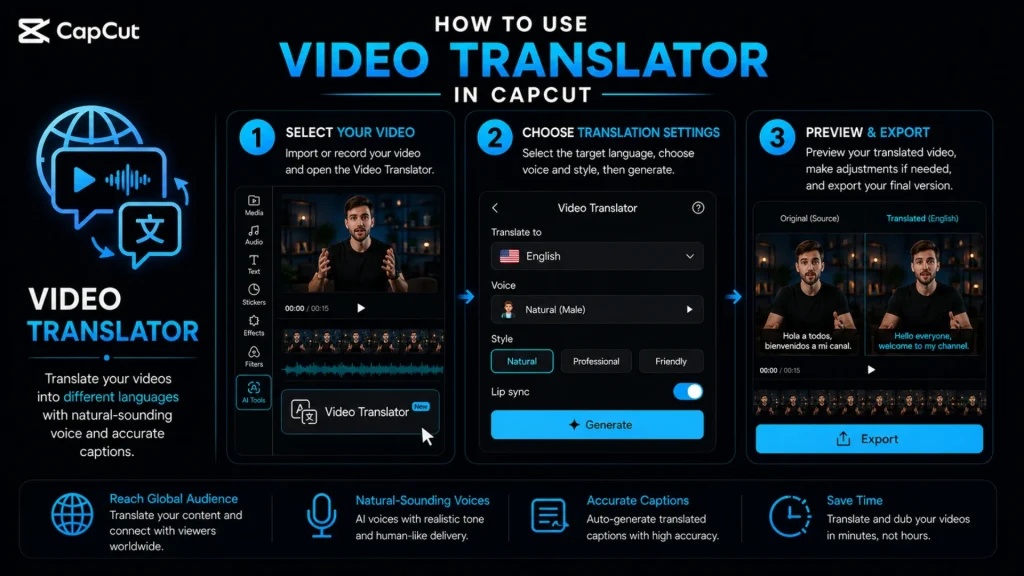
A fitness coach recording in English can push the same workout to a Spanish-speaking audience without reshooting or hiring a translator. This is a game changer for international content creation, as it opens a doorway to global markets that used to be bolted shut.
Overdub
Overdub replaces or reworks the original audio while matching the speaker’s tone and timing. Did you stumble on a line or need to change a price mid-edit? Rather than re-recording the whole segment, you can patch the words, and Overdub blends the new audio into the old delivery. This makes complex video editing feel like a simple text correction.
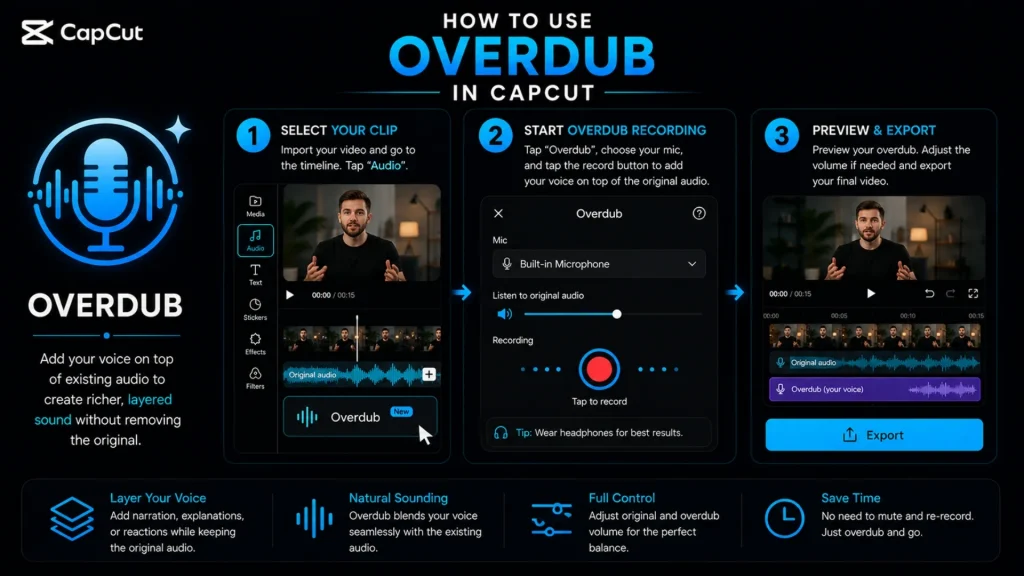
For example, if your product video quotes twenty dollars but the price drops to fifteen, Overdub swaps the number while keeping your voice sounding consistent in terms of pitch and pacing. Nobody hears the seam. It is the editing equivalent of a magic trick.
Teleprompter
The Teleprompter tool puts your script on screen while you record, scrolling as you go so your eyes stay near the lens. No more memorizing paragraphs or glancing off-camera to peek at notes.
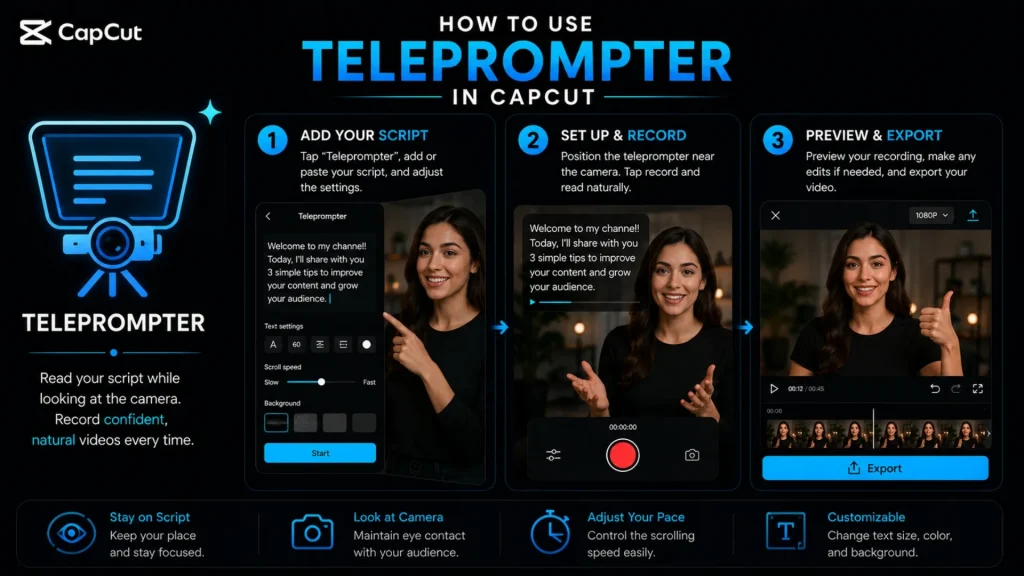
New creators love this feature. You write your talking points, set the scroll speed to match your pace, and read naturally while looking straight down the barrel. The result feels rehearsed even when it is your first take. Confidence is delivered on rails.
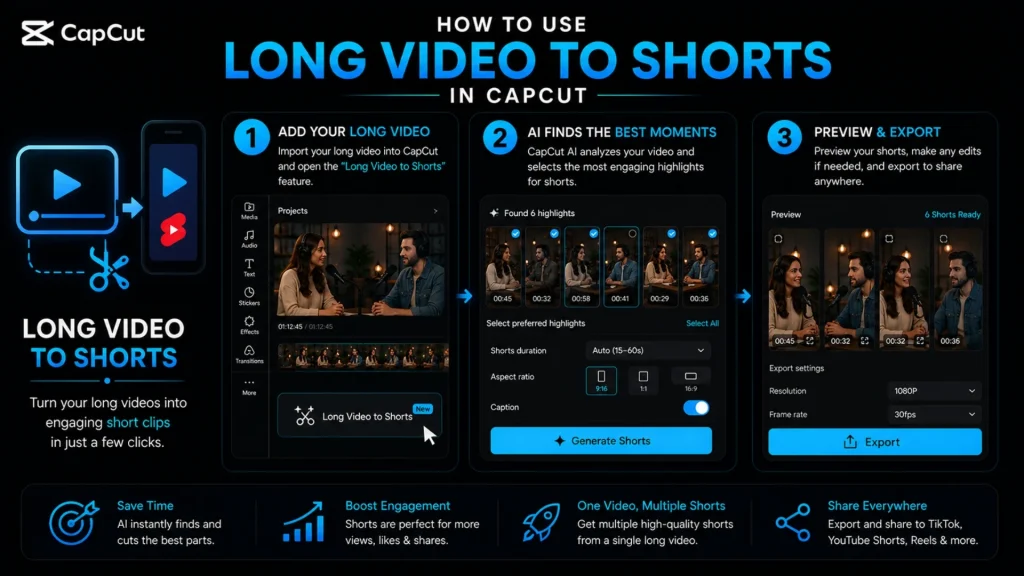
Long Video to Shorts
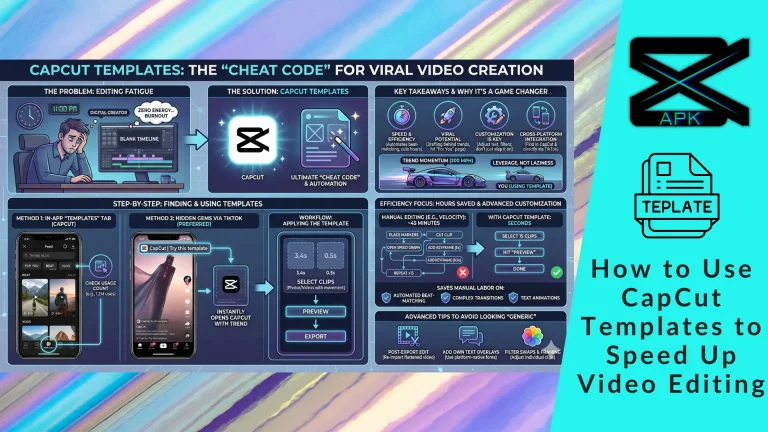
Many creators struggle to maximize their library, but the Long Video to Shorts tool identifies the most engaging segments of your long-form footage and automatically crops them into vertical clips. It saves hours of manual searching, allowing you to scale your content output effortlessly. You can also speed up editing with CapCut templates.
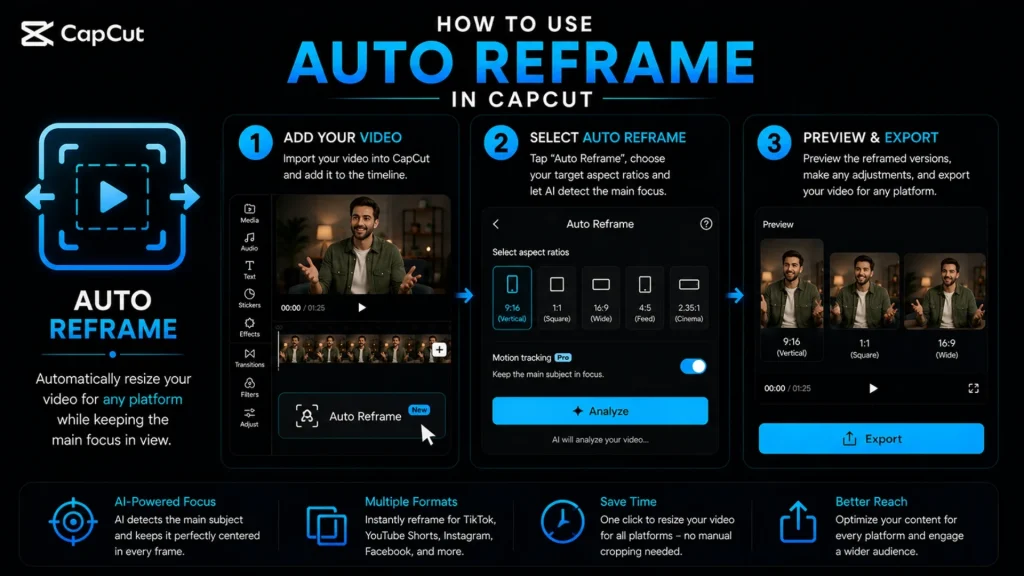
Auto Reframe
Auto Reframe is essential for creators who need to repurpose footage across different platforms. The AI detects the primary subject of your shot and keeps them centered regardless of the aspect ratio. Whether you are moving from a wide cinematic landscape to a vertical mobile format, the tool ensures your subject stays perfectly framed.
AI Packaging
AI Packaging helps format and package your finished content, acting as the presentation layer that makes a video ready to publish and click-worthy. It leans on AI to assist with the framing and final polish that turn a raw export into something viewers actually tap.
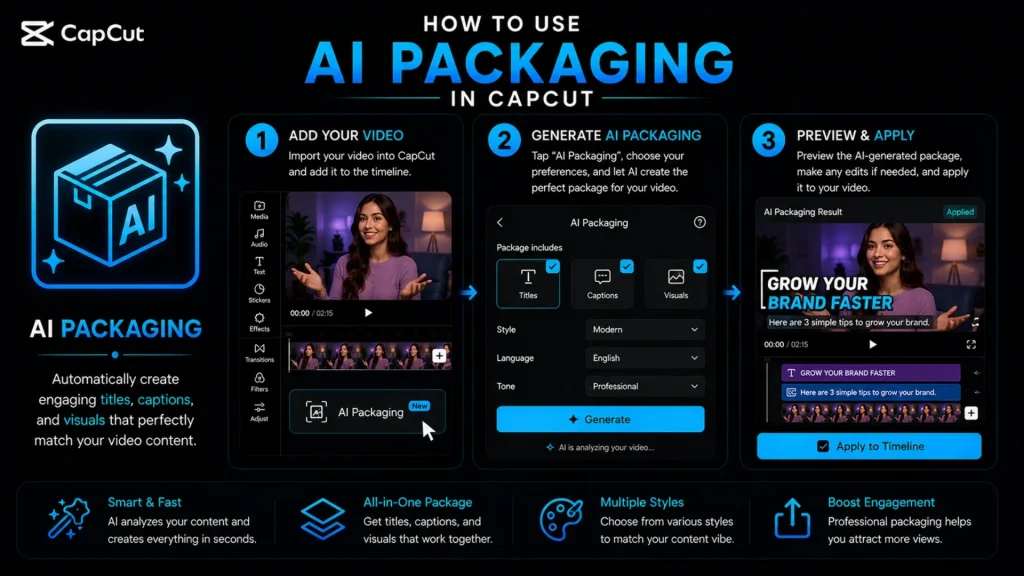
Think of it as the assistant who tidies your work before it goes out the door. You have done the edit, and AI Packaging helps dress your social media content for the platform so it looks intentional rather than slapped together. This can also benefit you, if you are part of the CapCut Creator Program.
Gen AI: Create Content From Scratch
The newest frontier is generative writing, and CapCut has planted a firm flag here with its advanced AI writer tools.
AI Writer
The AI writer is a generative tool that expands or shortens your written content with one click. Feed it a thin sentence and it fleshes the idea out; hand it a rambling paragraph and it trims the fat. It functions as a reliable writing partner sitting right inside your editor.
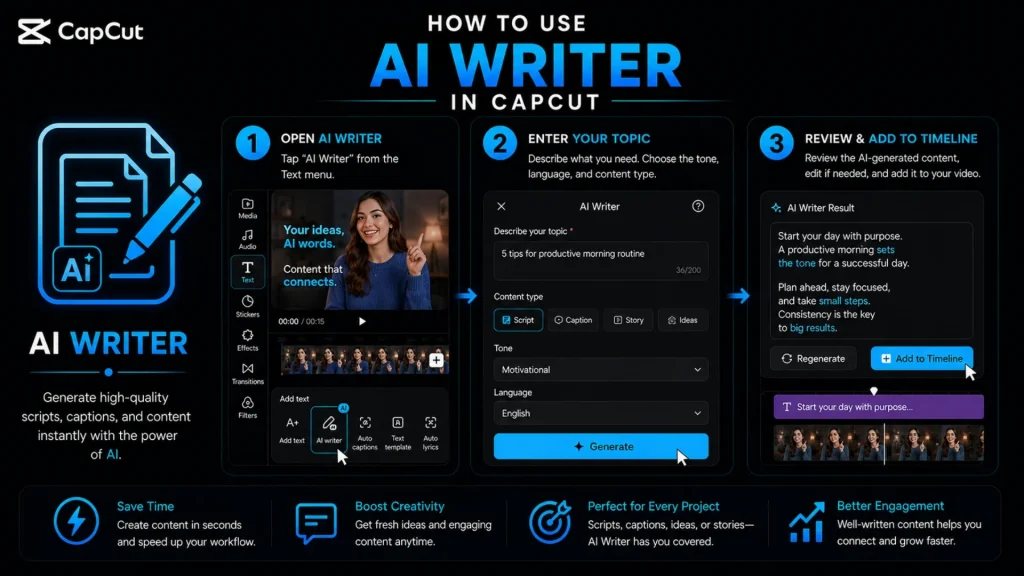
Here is where it shines. You might have a caption that reads “new video out,” but that will not stop a thumb mid-scroll. Run it through the expand function to get a hook with real pull, or use the shorten tool to distill long descriptions into concise text that fits your layout. It is essentially a professional editor that helps you overcome writer’s block instantly.
AI Video
AI Video is where CapCut stops assisting and starts creating. Instead of dragging clips onto a timeline, you hand the AI a text prompt or a rough idea and it generates video footage from scratch. Describe a scene — a neon city at dusk, waves crashing on black sand — and the tool conjures moving visuals that never touched a camera. It is the difference between editing what you filmed and summoning what you only imagined. For creators stuck without the right B-roll, a budget for a shoot, or the time to hunt through stock libraries, that gap-filler is a genuine unlock.
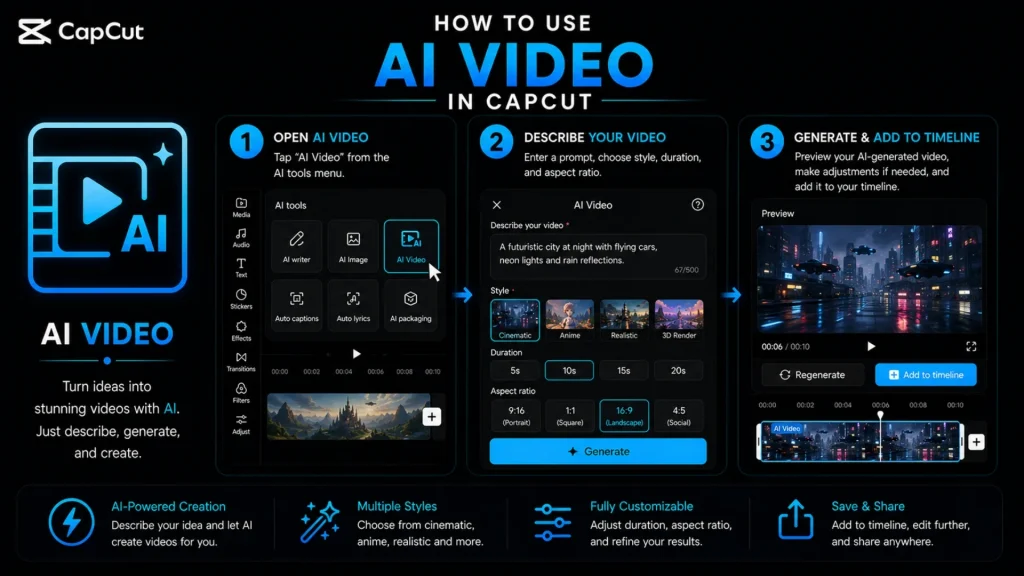
Picture a small brand teasing a product that is not even built yet. No footage exists, so a traditional edit is dead on arrival. With AI Video, they type out the concept and generate a slick visual to carry the announcement. Faceless channels lean on it too, spinning up dreamlike scenes for storytelling clips that would cost a fortune to film. A word of caution, though: generated footage still needs a careful eye, since AI can bend hands, blur text, or drift from your prompt in odd ways. Treat the output as raw material rather than a finished cut, and it becomes one of the most powerful tricks in the whole toolkit.
Avatar Tools
Avatar Tools hand your video a presenter without ever putting you in front of a lens. Pick a lifelike digital character, feed it a script, and CapCut animates it to deliver your message with natural gestures and lip-sync that actually tracks the words. No lighting setup. No worrying about how your hair looks. No re-recording because a car horn blared through take four. Under one roof, the feature bundles four distinct tools, each aimed at a different creative job, so the same menu that gives you a talking host can also translate your footage or dress a virtual model.
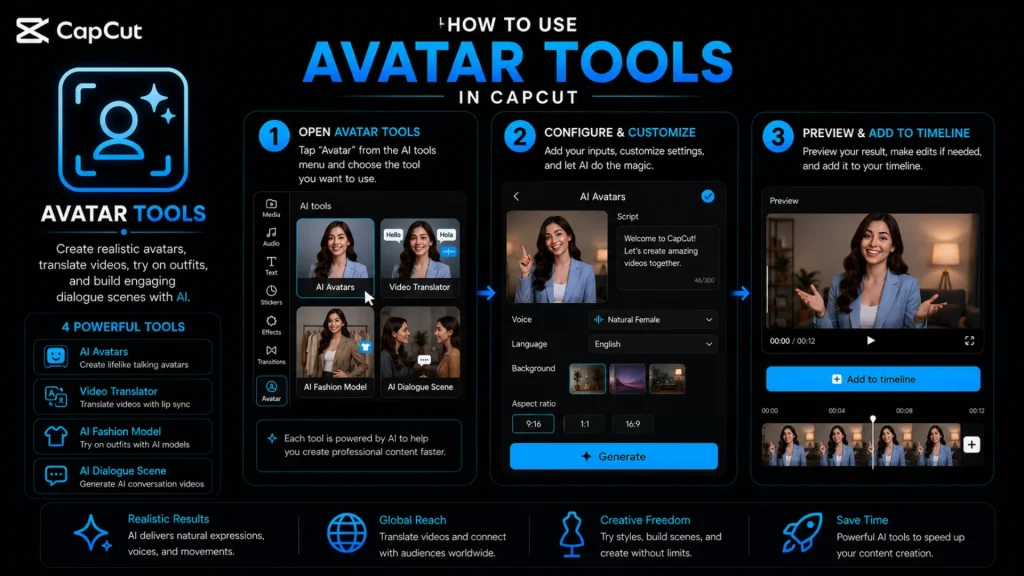
Here is what sits inside Avatar Tools:
AI Avatars — Choose a digital presenter to deliver your script on camera. It is perfect for course creators, faceless channels, and brands that want a consistent face across dozens of clips without filming each one.
Video Translator — Convert the spoken words in your video into another language, dialogue and all. One recording can suddenly speak to audiences who do not share your native tongue, opening the door to global reach.
AI Fashion Model — Drape your clothing or product on a lifelike virtual model. Instead of booking a photoshoot, apparel sellers and boutiques can showcase garments on a realistic figure in minutes, which is a real budget-saver for small stores.
AI Dialogue Scene — Build a back-and-forth exchange between characters, letting avatars actually converse. It is a slick way to script skits, explainer dialogues, or storytelling clips where two “people” trade lines.
Think of a course creator pumping out weekly lessons, or an online boutique that needs fresh product shots every week. Filming or booking models for each one would drain hours and money. With Avatar Tools, they type the script, pick the right option, and let the AI carry it, keeping the brand identity rock-solid from clip to clip. Pair the AI Avatars with Text to Speech for the voice, run a foreign version through the Video Translator, and you can build an entire multilingual, on-brand video without recording a single frame yourself.
Which AI Features Should You Actually Use?
Not every tool fits every creator, and choosing the right one depends on your specific workflow. As a powerful AI video editor, CapCut offers a suite of free AI tools designed to streamline your production process. Here is a quick map to match the feature to your social media content goals.
| If you want to… | Reach for… | Category |
|---|---|---|
| Auto-caption speech in seconds | Auto Captions | AI Text |
| Sync song lyrics to the beat | Auto Lyrics | AI Text |
| Reach two language audiences | Bilingual Captions | AI Text |
| Make key words pop on screen | Auto Highlight Keywords | AI Text |
| Narrate without recording | Text to Speech | AI Text |
| Clean up a noisy voice | Enhance Voice | AI Audio |
| Split vocals from music | Separate Audio | AI Audio |
| Sharpen low-res images | AI Image Upscaler | AI Image |
| Fix or restyle the lighting | Relight | AI Image |
| Track a moving subject | Camera Tracking | AI Image |
| Translate spoken dialogue | Video Translator | AI Editing |
| Fix a line without re-recording | Overdub | AI Editing |
| Read a script on camera | Teleprompter | AI Editing |
| Turn long footage into clips | Long Video to Shorts | AI Editing |
| Keep the subject framed in any ratio | Auto Reframe | AI Editing |
| Polish and package for publishing | AI Packaging | AI Editing |
| Write or trim your copy | AI Writer | Gen AI |
| Generate video from a prompt | AI Video | Gen AI |
| Add a digital presenter | Avatar Tools | Gen AI |
Ready to put these tools to work? Download the latest build and start with the one feature that fixes your biggest headache. The rest will follow.
Getting the Most Out of CapCut’s AI
A few habits separate the creators who master content creation from those who constantly fight their tools:
- Feed it good source material. AI enhances what you give it. It cannot perform miracles on a video shot through a dirty lens in a dark room. Simply put, garbage in results in slightly less garbage out.
- Always review the output. AI translations often miss slang, and captions may mishear proper names. A ten-second read-through catches errors before your audience does. For finding solutions to other Common CapCut errors and fixes, read the linked article.
- Layer the tools. Enhance the audio, then translate it, and then generate bilingual captions. Stacked together, these features compound into a production that looks like a whole team created it. If you need additional inspiration for your projects, consider using Seedance as an AI creative partner to brainstorm new concepts or refine your visual style.
- Keep the app updated. These features evolve fast. New tones, presets, and languages land in every update. Running an old build means missing out on the best tools. Download the latest CapCut Mod APK build to stay updated.
By mastering these specific CapCut AI features, you turn your editing suite into an automated creative studio. Whether you are scaling your social presence or fine-tuning professional projects, these tools ensure you get the absolute most out of the CapCut AI features ecosystem.
Conclusion
CapCut’s AI tools are designed for speed and accessibility, making them superior for social media content where rapid iteration is essential. While professional desktop software offers deeper, granular control for complex cinematic editing, CapCut excels at automating the repetitive tasks that would otherwise consume your time.