9 Free CapCut Alternatives for Android Without Watermarks
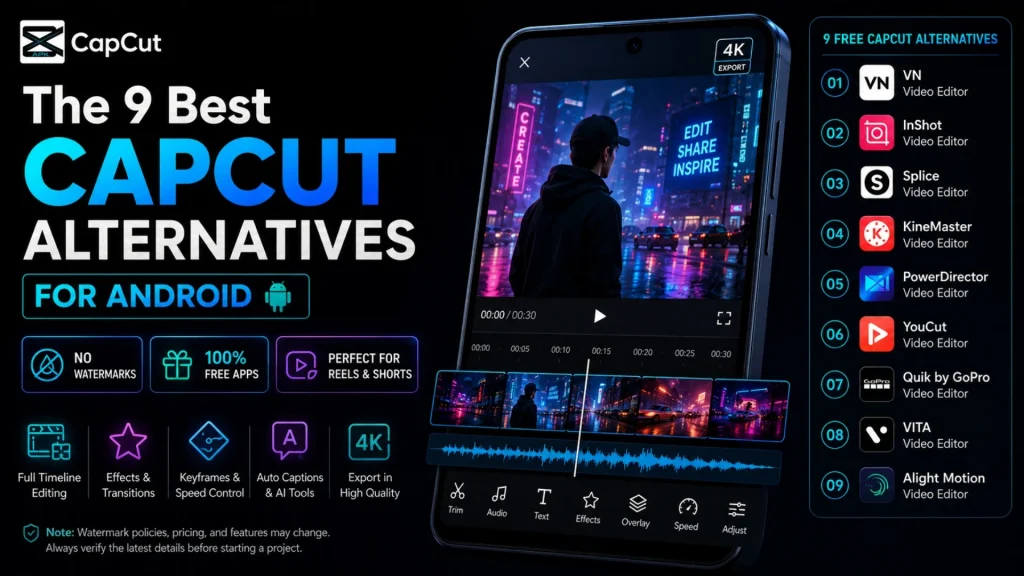
Searching for the best CapCut alternatives for Android is a common move for creators who want professional results without the restrictive limitations of a premium subscription or intrusive branding. Polished TikToks, Reels, Shorts, and YouTube videos shouldn’t require a CapCut Pro subscription or a logo stamped on your final frame. Finding reliable, watermark-free video editing apps ensures you can handle clean cuts, music, captions, filters, and vertical exports without making your phone struggle. These apps vary widely in free tools, watermark rules, export quality, and device support. When evaluating various mobile editing apps, it is important to check each current Google Play listing before installing, especially after app updates or regional changes.
Introduction
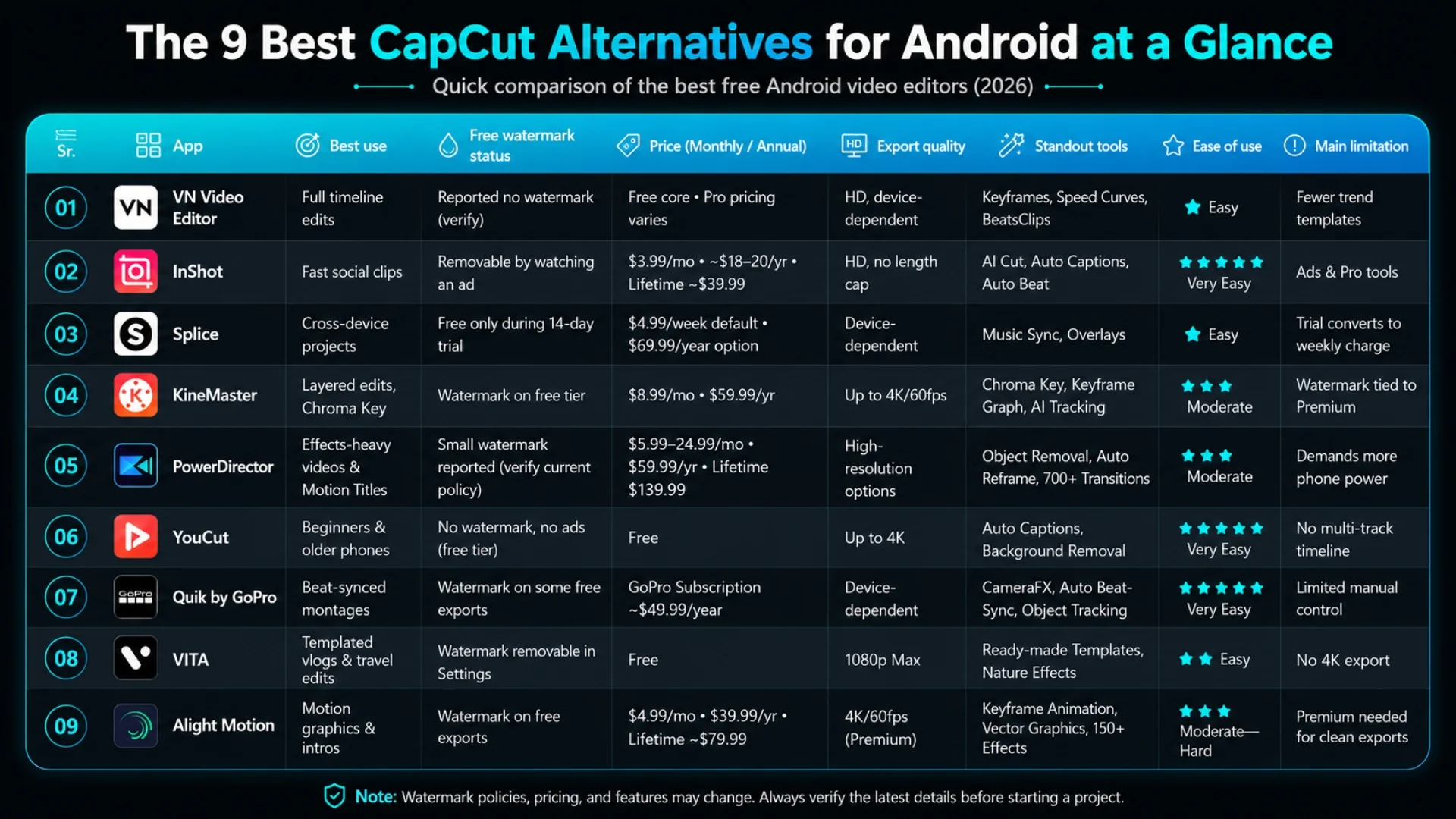
Key Takeaways
- VN Video Editor serves as the premier choice for a multi-track, professional workflow that mirrors a CapCut-style experience.
- If you need a free video editor that is lightweight and simple, YouCut handles basic cuts and ensures a no watermark output without requiring a subscription or ad interaction.
- InShot remains a top contender for creating quick social posts, though you will typically need to watch a short ad to remove the watermark before exporting.
- KineMaster and PowerDirector offer advanced creative tools like chroma keying and keyframes, but note that their free versions often include watermarks that require an upgrade to remove.
- VITA is a standout app that allows you to disable the watermark for free by simply adjusting a toggle in the settings menu.
- Splice and Alight Motion offer powerful features, but users should be aware that their free tiers may involve recurring costs or mandatory watermarks that can only be cleared with a paid plan.
- Always perform a test export on a short clip before committing significant time to a project, as the policies for many free video editor apps change frequently.
Why People Look for CapCut Alternatives
Most people do not go looking for a new editor out of boredom; something about CapCut stopped working for them. Maybe a feature they relied on moved behind a paywall, the app started lagging on an older phone, or a template export arrived with an unexpected watermark. Between ByteDance ownership and evolving privacy concerns, many users are also reevaluating their tools based on shifting Terms of Service. It is no surprise that creators are keeping a backup app installed, especially those producing short-form content for TikTok or Instagram Reels who need a tool that will not choke mid-export or add branding they never approved.
Switching is not only about dodging a paywall. Some of these video editing apps genuinely fit certain workflows better. For example, VITA templates can be faster than digging through the CapCut library for a quick vlog, and KineMaster offers audio tools that go deeper than CapCut for users focused on sound design. Just do not assume free settles the question on its own. As the list below shows, free can mean no watermark ever, or it can mean a watermark that costs a subscription to remove. Understanding these differences is worth knowing before you build a project around the wrong assumption.
CapCut still dominates, but it is not the only name worth having on your phone. Pricing tiers have shifted, some templates and AI tools now carry a Pro watermark, and plenty of Android editors have quietly closed the gap on features while remaining accessible. Whether you are locked out of CapCut, hit a paywall mid-project, or just want a backup app that will not brand your export, the nine options below cover everything from familiar timelines to beat-synced montages and motion-graphics tools.
A quick note before you start: free means different things across these apps. Some skip watermarks entirely on the free tier, some remove them with a tap and a short ad, and a couple use a free trial that converts into a subscription if you are not paying attention. Each entry below flags exactly which category it falls into, so check that section before you build a real project around any of them.
1. VN Video Editor: Closest CapCut-Style Experience
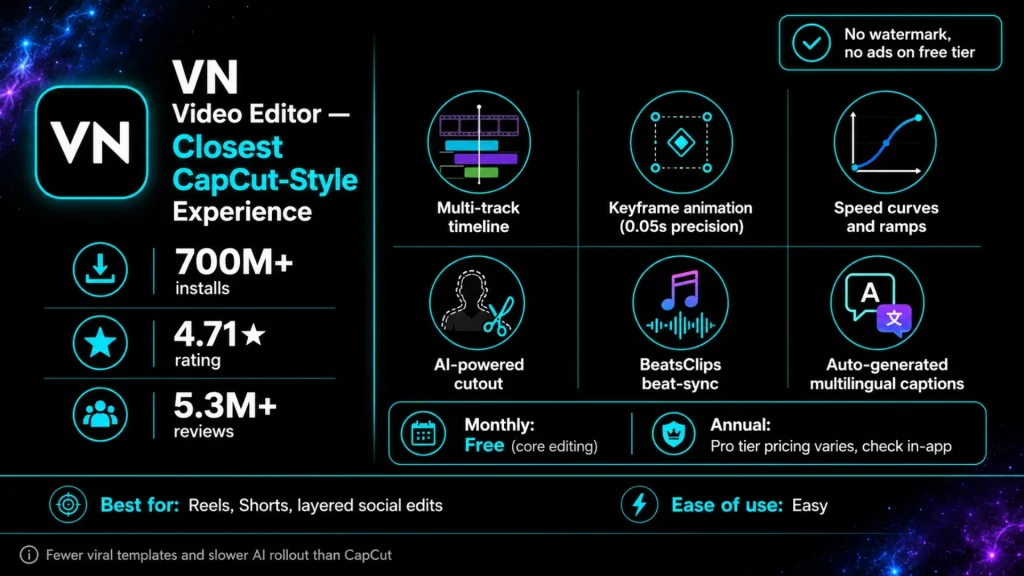
VN Video Editor is the best starting point if you want a familiar multi-track timeline without clutter. Built by the team behind the original VlogNow app, this tool has grown into one of the most popular options on Android, boasting hundreds of millions of downloads and high user ratings. It serves as a genuine, high-performance competitor to CapCut.
Key Features and Toolset
The toolset backs that up. VN Video Editor packs a real multi-track timeline, precise keyframe animation that allows for movements accurate to 0.05 seconds, speed curves, and cinematic filters. It also includes a text engine that features auto captions to generate subtitles in multiple languages, saving significant time for content creators. You also get denoise for cleaning up messy audio, a mosaic tool for blurring faces, and AI-powered background removal. Add over 1,000 royalty-free music tracks and sound effects, and you have a toolkit that covers most of what CapCut offers, minus the watermark anxiety.
VN vs CapCut
Where CapCut still pulls ahead is in its massive library of viral templates. However, for TikTok creators who prefer a cleaner, more professional interface that feels similar to Adobe Premiere, VN offers a more refined editing workspace that rewards deliberate control over rapid, automated transitions.
Pros, Cons, and Best Use Cases
- Pros: Strong timeline tools, no watermark, no ads, clean interface, flexible controls.
- Cons: Fewer built-in viral templates and slower AI feature rollout than CapCut.
- Best for: Reels, Shorts, and layered social edits.
How to Get Started
Start by importing clips, trimming dead space, adding text, then exporting a five-second test to confirm your build is watermark-free before you commit to the full project. Available on Android, iOS, Mac, and Windows.
2. InShot: Quick Social Edits Made Simple
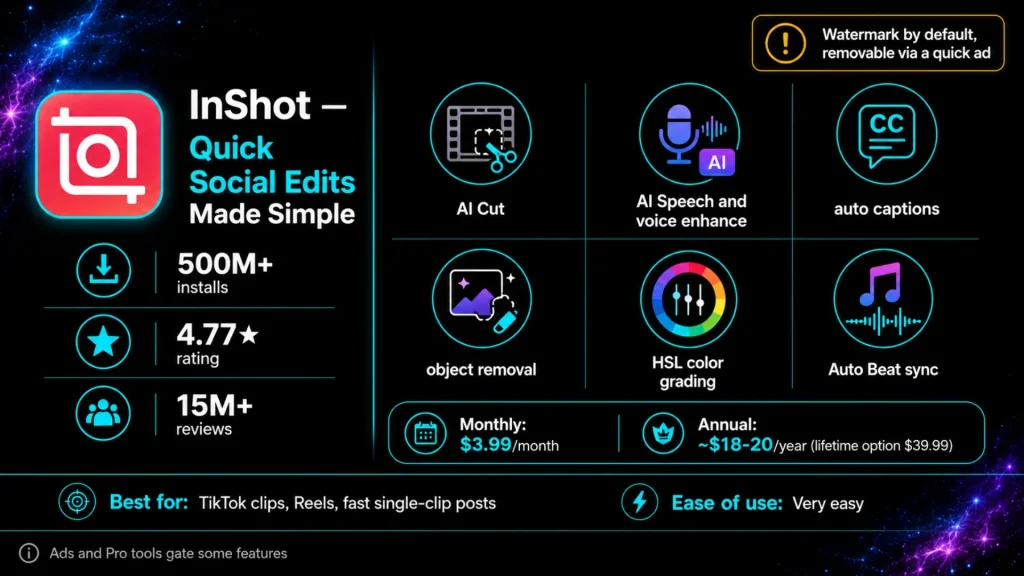
InShot is built for speed, making it an ideal choice for TikTok and Instagram Reels. You can resize clips for any platform, then layer on music, text, stickers, filters, blur backgrounds, and speed changes without digging through menus. Behind that simple interface sits a surprisingly deep toolkit: AI Cut, AI Speech, voice enhance, auto captions in multiple languages, object removal, background removal, a video stabilizer, HSL color grading, tracking, and Auto Beat for syncing edits to music. It also ships with a sizable library of transitions, AI-generated effects, video templates, stock music, and stickers, so most edits never need outside assets.
Key Features and Pricing
Its free version commonly places a watermark by default, and free exports do not have a length cap even at 4K. Users can usually tap the watermark’s X and watch a short ad to strip it from that export, which is a fair trade for a genuinely free tier among top video editing apps. Going Pro removes that step entirely. Pricing has run around $3.99 per month or roughly $18 to $20 per year, with a one-time lifetime option that has shown up around $39.99, so it is worth checking the current price in-app since InShot runs frequent promos.
InShot vs CapCut
Compared to CapCut, which does not watermark free exports by default but tucks some premium templates and effects behind a small Pro badge, InShot flips the friction. You will see a watermark more often on the free tier, but removing it costs nothing but a few seconds. InShot is friendlier than VN for fast, single-clip posts, while its sister app YouCut usually feels even lighter for basic trims and simple exports.
Pros, Cons, and Best Use Cases
- Pros: Fast interface, deep effects library, cheap Pro tier, no length limit on free exports.
- Cons: Free exports carry a watermark by default; removing it means watching an ad each time.
- Best for: TikTok clips, Reels, and quick single-scene edits.
How to Get Started
Import a clip, resize it to your platform’s aspect ratio, add captions and music, then export once to confirm whether you need to tap through the ad-removal step. Available on Android, iOS, and AppGallery.
3. Splice: Easy Projects Across Devices
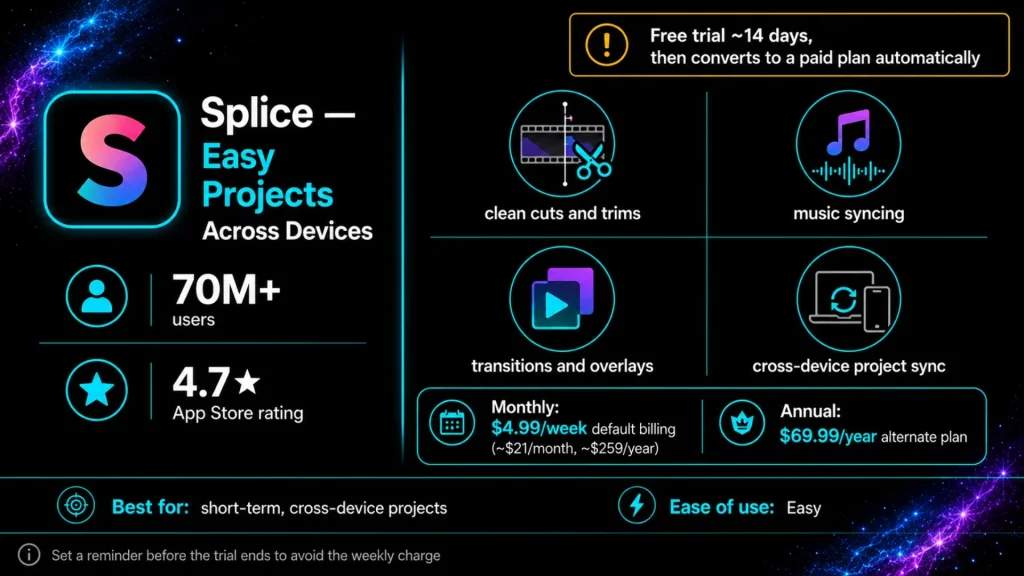
Splice keeps editing straightforward with clean cuts, music syncing, text, transitions, overlays, and social aspect ratios. It appeals to creators who move between devices and do not need a crowded timeline. The app claims over 70 million users and a 4.7 rating on the App Store, and it is now owned by Bending Spoons, the same company behind several other well-known mobile apps, which explains the polished onboarding and consistent updates.
Key Features and Pricing
Here is the part to read twice: a free trial, free editing tools, and fully free watermark-free exporting are three different things, and Splice is a textbook example of why that distinction matters. While many users look for a free video editor that provides lasting utility, Splice operates on a trial-based model. You can use every core feature, including watermark-free exports, during the trial window, which typically runs around 14 days.
Once that window closes, Splice switches to a paid subscription model, and the default option bills at roughly $4.99 per week, which adds up to over $250 a year if you never switch it. There is a far cheaper annual plan around $69.99 a year, but you have to seek it out manually since the app does not default to it. Plenty of users report getting stuck on the weekly charge simply because they missed the cancellation window, so mark your calendar the day you install it.
Splice vs CapCut
Compared to CapCut, whose free tier survives indefinitely with only some premium templates and effects locked, Splice access is a countdown timer wearing a free label. If you just need clean, cross-device edits for a short project, it is worth using, but treat the trial like a rental rather than a permanent free tool.
Pros, Cons, and Best Use Cases
- Pros: Clean interface, watermark-free during trial, syncs across devices.
- Cons: Trial converts to a recurring weekly charge by default; easy to get billed if you forget to cancel or switch plans.
- Best for: Short-term projects and creators syncing edits across phone, tablet, and desktop.
How to Get Started
Import a few clips, apply a quick transition and some music, then export that test project before the trial clock runs out, so you know exactly what a watermark-free file looks like. Check Splice’s pricing page for the current trial length and billing terms, and set a reminder a day or two before it ends so you don’t get rolled onto the weekly charge by accident. Available on Android and iOS.
4. KineMaster: Deep Frame-by-Frame Control
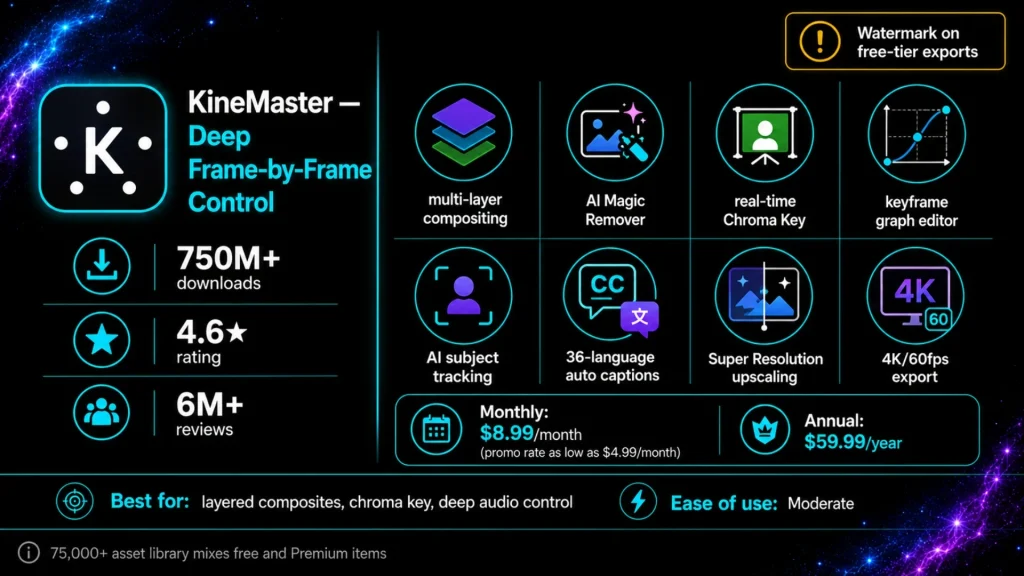
KineMaster offers multi-layer editing, advanced chroma key capabilities, blending modes, keyframes, audio controls, effects, and accurate trimming. It suits creators who want to fine-tune each frame rather than move fast through templates. Backing that reputation up are 750 million-plus downloads and a 4.6-star average across more than 6 million ratings, making it one of the longest-standing names in mobile editing.
Key Features and Pricing
The feature list reads like a scaled-down desktop NLE, offering a level of precision that feels closer to DaVinci Resolve than your average mobile app. You get true multi-layer compositing, an AI-powered Magic Remover for background cutouts, real-time alpha preview, transparent-background exports, and corner pin for compositing footage onto walls or screens. The keyframe graph allows for precise animation timing, and AI tracking follows moving subjects without manual keyframing. The audio side is unusually deep too, with pitch control, volume envelopes, reverb, EQ, and voice modulation. Add auto captions in 36 languages, AI voice text-to-speech, Super Resolution upscaling, and 4K/60fps export, and you can see why creators call it the most complete professional editing tool on this list.
That level of control can feel busy for beginners, and the free tier has a real catch: exports carry a watermark by default, and KineMaster Premium is what removes it, alongside unlocking the bulk of its 75,000+ asset library. Reported pricing for Premium ranges from roughly $8.99 per month or $59.99 per year down to promotional rates near $4.99 per month, so confirm the current offer in-app rather than trusting a cached price.
Kinemaster vs CapCut
CapCut still wins on convenience: its free tier skips watermarks entirely and gets a decent edit out the door faster, with less of a learning curve for anyone used to tapping through templates. KineMaster trades that simplicity for depth, giving you real chroma key, a proper keyframe graph, and audio tools like EQ and voice modulation that CapCut doesn’t really attempt. Pick CapCut when you want speed and a clean export by default; pick KineMaster when the project demands compositing or audio control CapCut can’t match, and budget for Premium if you want that work watermark-free.
Pros, Cons, and Best Use Cases
- Pros: Genuinely pro-grade toolset, deep audio editing, huge asset library, cloud project sync across devices.
- Cons: Free exports carry a watermark; premium assets are easy to mix into a project by accident; steeper learning curve than CapCut.
- Best for: Layered composites, chroma key work, and creators who want granular audio and keyframe control.
How to Get Started
Build a short test clip using the effects you actually plan on using, chroma key, a keyframe animation, or a layered composite, then export it in full before you commit to a real project. That single export tells you whether you accidentally reached for a Premium-only asset and shows you exactly how visible the free-tier watermark is on your footage. Available on Android and iOS.
5. PowerDirector: Professional Editing and CapCut Alternatives for Android
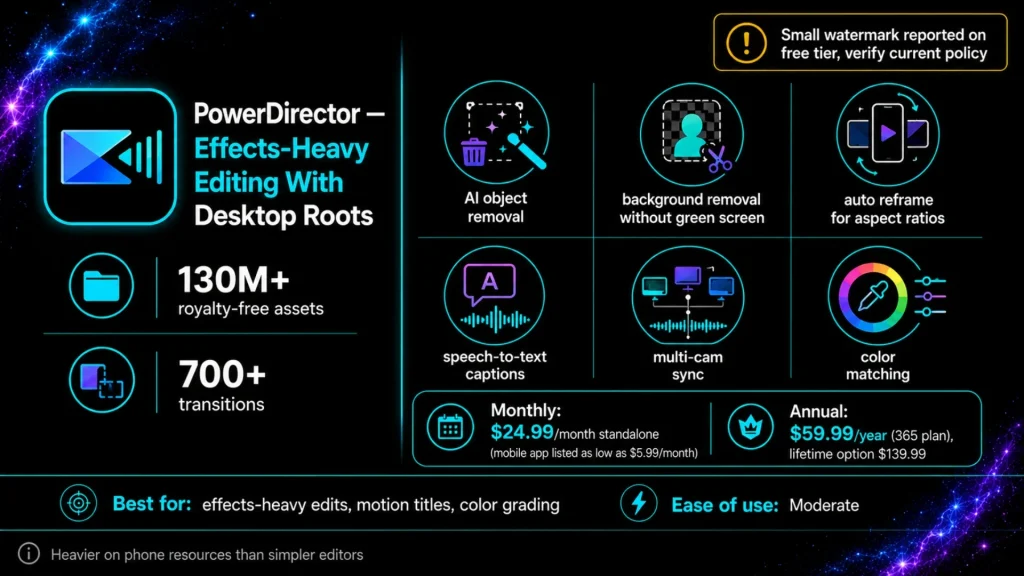
PowerDirector is a solid fit for motion titles, transitions, stabilization, green screen, slow motion, and effects-heavy clips. It can also offer higher-resolution exports, including 4K resolution when your device supports them. That polish comes from its lineage; CyberLink has built desktop editing software since 1996, and PowerDirector 365 currently carries PCMag’s Editor’s Choice badge. It is backed by a 130-million-plus stock media library (Getty Images and Meta Sound Collection), 700 plus transitions, and AI tools like object removal, background removal without a green screen, auto reframe for different aspect ratios, and speech-to-text captioning.
Key Features and Pricing
The interface asks more from your phone than YouCut or InShot, since it is essentially a desktop-grade NLE squeezed into a mobile shell, with multi-cam sync, color matching, and keyframe-driven motion graphics that go well beyond basic trim-and-post tools. Expect ads and premium features on the free Essential tier, which CyberLink says has no time limit but does restrict advanced AI tools and some export options. Several reviewers also report a small watermark in the corner on free exports. Because CyberLink updates this policy alongside its pricing tiers, verify the current free watermark policy before you commit to a project.
Paid tiers run roughly $24.99 per month standalone, or $59.99 per year (about $5 per month) for the recommended PowerDirector 365 plan, with a one-time lifetime license around $139.99 if you would rather skip subscriptions entirely. The mobile app has occasionally listed its own premium price near $5.99 per month, so check the in-app store page for the number that actually applies to your phone.
PowerDirector vs CapCut
Against CapCut, the two trade places depending on what you value. CapCut’s free mode skips watermarks on standard exports (it only tacks on a small branded clip at the very end, which you can tap and delete), and its Standard tier at around $9.99 per month is mainly about unlocking extra templates and effects rather than removing a watermark you already do not have.
PowerDirector flips that; its free tier is more likely to leave a small mark on your export, but its paid plans, especially the $59.99 per year option, undercut CapCut’s $19.99 per month Pro tier by a wide margin while handing you a deeper effects and color toolkit. CapCut still wins on simplicity and trend-driven templates for someone who just wants to post fast, while PowerDirector wins for anyone doing color grading, multi-cam edits, or motion titles that CapCut’s more streamlined toolset does not really attempt.
Pros, Cons, and Best Use Cases
- Pros: Deep AI and effects toolkit, huge stock media library, cheaper long-term pricing than CapCut Pro, including a lifetime option.
- Cons: Heavier on phone resources than CapCut; free tier watermark and ad presence should be confirmed before a big export.
- Best for: Effects-heavy edits, motion titles, and creators who want desktop-level finishing tools on a phone.
How to Get Started
Import a short clip and run it through the effects you actually plan to use, motion titles, stabilization, or a green screen shot, then export it before you build anything longer. PowerDirector’s free Essential tier mixes in ads and restricts some AI tools and export options, so that first export is the fastest way to see whether a small watermark shows up in the corner and whether your phone handles the heavier interface smoothly. Available on Android and iOS.
6. YouCut: Lightweight Editing for Beginners and Older Phones
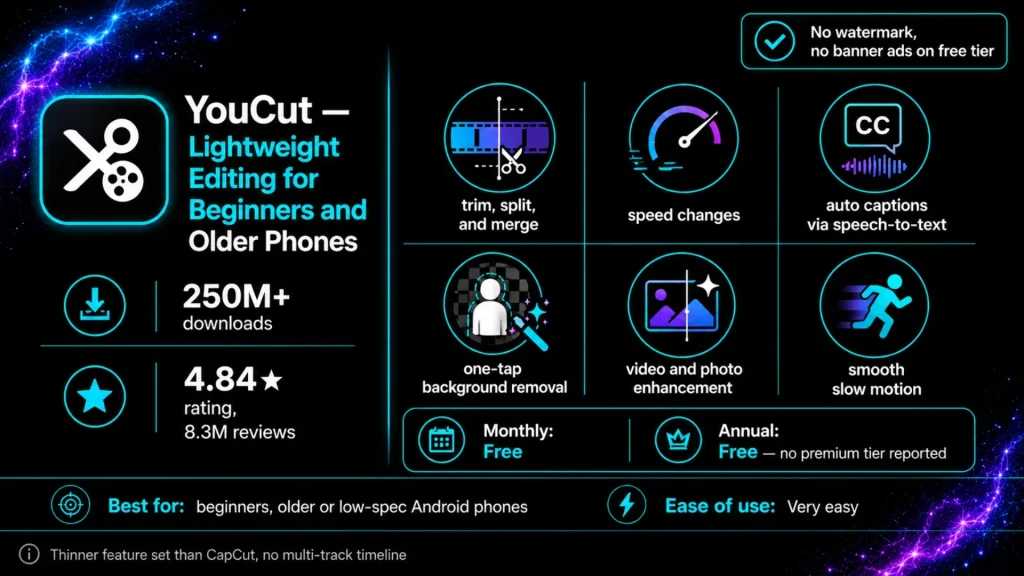
YouCut focuses on cutting, joining clips, adding music, text, filters, speed changes, compression, aspect-ratio presets, and simple backgrounds. It is one of the clearest choices for beginners and older Android phones. It comes from the same developer as InShot (Camerasideas), which explains the family resemblance, but YouCut strips things down further: no crowded effects menu, no AI avatar tools, just the editing basics done cleanly. It is also popular, with roughly 250 million downloads and a 4.84-star average across 8.3 million Google Play ratings, putting its review score above most editors on this list.
Key Features and Pricing
Under the hood, you still get a few AI touches: auto captions via speech-to-text, one-tap background removal, video and photo enhancement, and smooth slow-mo, alongside the expected trim, split, merge, speed, filter, and compression tools. Export tops out at 4K, and the app’s own listing states plainly that it never adds a no watermark experience and shows no banner ads, which is a rare combination for a free editor.
Its base version is widely reported to export without a watermark, although ads and paid extras may remain in some regions or app versions, so check the final export screen after updates rather than assuming the policy has not changed. Compared with CapCut, which now keeps its Standard tier at $9.99/month mainly for extra templates and its Pro tier near $19.99/month for the full AI suite, YouCut asks for nothing to get a clean clip out the door. The tradeoff is depth.
YouCut vs CapCut
CapCut brings the deeper toolkit: a real multi-track timeline, keyframe animation, and a full AI suite that YouCut doesn’t attempt. But CapCut’s Standard tier runs $9.99/month and Pro closer to $19.99/month for those extras, while YouCut hands you a clean, watermark-free export for nothing. Pick CapCut when a project needs layers or AI polish; pick YouCut when you just want a fast, simple cut that won’t cost you anything or bog down an older phone.
Pros, Cons, and Best Use Cases
- Pros: No watermark, no ads on the free tier, light on device resources, high user rating.
- Cons: Thin feature set next to CapCut or VN; no multi-track timeline for layered edits.
- Best for: Beginners, older or lower-spec Android phones, and quick single-clip edits.
How to Get Started
Trim a short clip, add a music track and a caption or two, then export it right away to confirm you’re getting a clean, watermark-free file on the first try. YouCut’s stripped-down menu means there’s not much to configure beforehand, so this test takes barely a minute and tells you everything you need before you start a longer edit. Available on Android and iOS.
7. Quik by GoPro: Beat-Synced Montages With Zero Manual Cutting
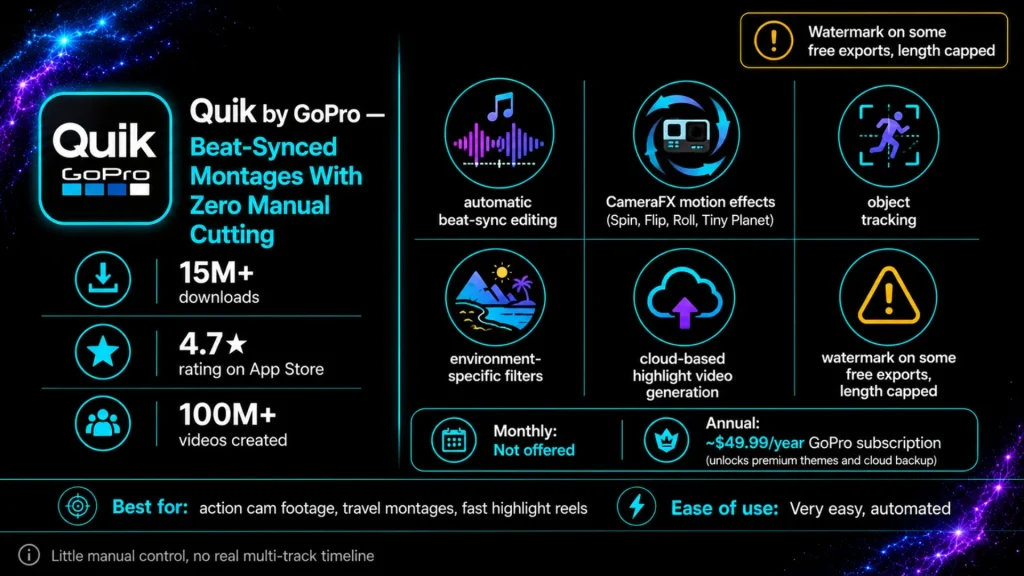
Quik by GoPro turns action clips, travel footage, and photo collections into beat-synced montages. Video templates and music handle much of the timing, so you do not need to cut every clip by hand. Feed it footage and a song, and Quik analyzes the clips, then matches cuts to the beat automatically.
Action-focused extras round it out: CameraFX for motion effects like Spin, Flip, Roll, and Tiny Planet, object tracking that follows a subject through the frame, environment-specific filters for snow, water, and dirt, and pre-built themes that bundle transitions, music, and effects into one tap. GoPro also folded in cloud storage and automatic highlight videos that generate while your camera charges, a nice touch if you shoot with a GoPro camera rather than just your phone.
Key Features and Toolset
Worth knowing upfront: GoPro sunset the Quik desktop apps for Mac and Windows, so this is strictly a mobile play now, and Android remains fully supported. That speed comes with less manual control than VN or KineMaster; there is no real multi-track timeline or keyframe animation for standard footage, since Quik is built around automated montage-making rather than frame-by-frame editing. The free tier reportedly adds a watermark to some exports and caps video length, with most of the useful extras, like premium themes, music, unlimited GoPro cloud backup, and live streaming, gated behind a GoPro subscription running around $49.99/year.
Quik vs CapCut
Against CapCut, the two barely compete on the same turf. CapCut’s free tier skips watermarks entirely on standard exports and gives you a real timeline with keyframes, chroma key, and a deep AI toolkit, while Quik trades that control for near-zero effort: drop in clips, pick a theme, and let the beat-sync do the work. If you shoot action or travel footage and want a fast highlight reel, Quik still has a place; for layered social edits, CapCut or VN will get you further.
Pros, Cons, and Best Use Cases
- Pros: Genuinely hands-off editing, strong beat-sync and motion effects, built for GoPro footage.
- Cons: Limited manual control, free-tier watermark and length caps, best features locked behind a paid GoPro subscription.
- Best for: Action cam footage, travel montages, and fast highlight reels set to music.
How to Get Started
Drop a handful of clips into a new project, pick a theme, and let Quik auto-sync the cuts to a track from its music library, then export that short test before you build a real highlight reel. That one export shows you whether the free tier is adding a watermark or trimming your length on this version, and whether you’ll need the GoPro subscription for the theme or music you picked. Available on Android and iOS.
8. VITA: Trend-Ready Templates From the SNOW Team
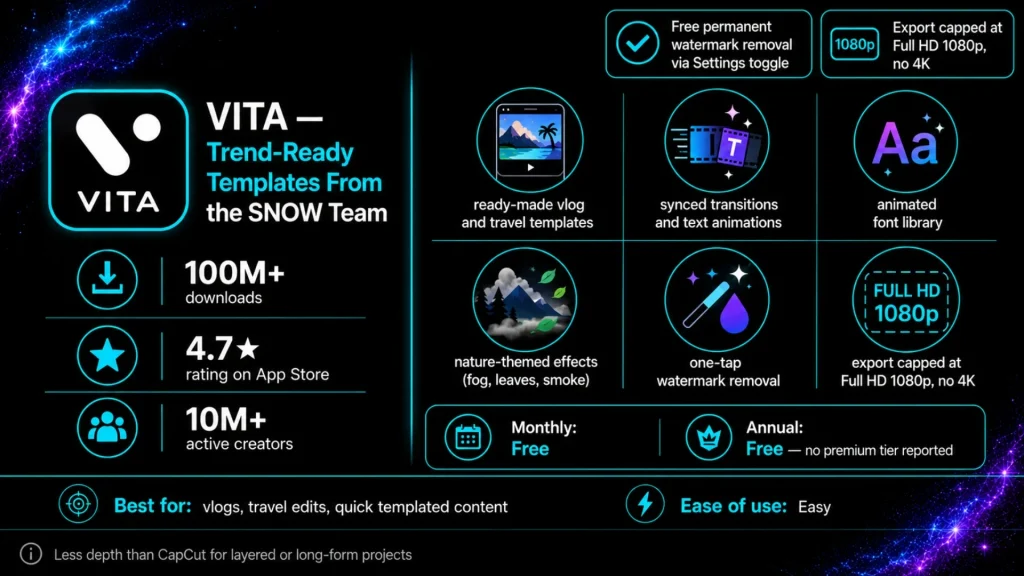
VITA leans into templates rather than a blank timeline, which makes it a fast pick for anyone who wants a polished vlog or travel edit without building it from scratch. It comes from SNOW Inc., the South Korean team behind the SNOW selfie camera app, and that lineage shows in VITA’s beauty-and-lifestyle-friendly filters. Its extensive template library is packed with options for vlogs, intros, and travel reels, each with synced transitions, text animations, and audio built in and fully customizable.
Underneath the templates sit the usual essentials: cropping, trimming, merging, speed adjustment, a decent text and font library with animated styles, and nature-themed effects like drifting leaves, rising fog, and screen-filling smoke that CapCut does not really offer out of the box.
Key Features and Pricing
VITA’s extensive template library is stocked with options for vlogs, intros, and travel reels, each one bundling synced transitions, text animations, and audio you can still fully customize to fit your own footage. Underneath those templates sit the usual essentials: cropping, trimming, merging, speed adjustment, and a decent text and font library with animated styles. It also throws in a handful of nature-themed effects, drifting leaves, rising fog, screen-filling smoke, that CapCut doesn’t really offer out of the box, giving vlog and travel edits a distinct look without extra work.
VITA skips the subscription model most other apps on this list lean on. There’s no VIP or Premium tier gating the core toolset, and unlike KineMaster, PowerDirector, Splice, or Alight Motion, you won’t hit a paywall just to keep editing. Some templates, stickers, or music tracks may sit behind a small in-app purchase or ad depending on the pack, but the essentials, including watermark-free exports, cost nothing and stay that way.
VITA vs CapCut
Against CapCut, VITA wins on template speed and painless watermark removal, but it loses on depth. CapCut’s multi-track timeline, keyframes, and 4K export give you more room to grow a complex project, while VITA is happiest handling a quick, templated edit and getting out of your way.
Pros, Cons, and Best Use Cases
- Pros: Free, permanent watermark removal via Settings; strong template library; nature-themed effects.
- Cons: Export capped at 1080p; less depth than CapCut for layered or long-form projects.
- Best for: Vlogs, travel edits, and quick templated content that does not need 4K.
How to Get Started
Pick a template close to your footage, drop in your clips and music, then head to Settings and flip off the “VITA Watermark” toggle before you export. That one setting is the whole trick with VITA, so confirm it’s off and run a quick export to check it before you build a project you actually care about. Available on Android and iOS.
9. Alight Motion: Motion Graphics Power for Intros and Typography
Alight Motion is not a standard cut and post editor. It is a powerful mobile motion graphics tool built around professional keyframe animation, layered compositing, and vector illustration. You can think of it as a pocket version of After Effects or a mobile-first alternative to DaVinci Resolve for users who need a complex layering workflow.
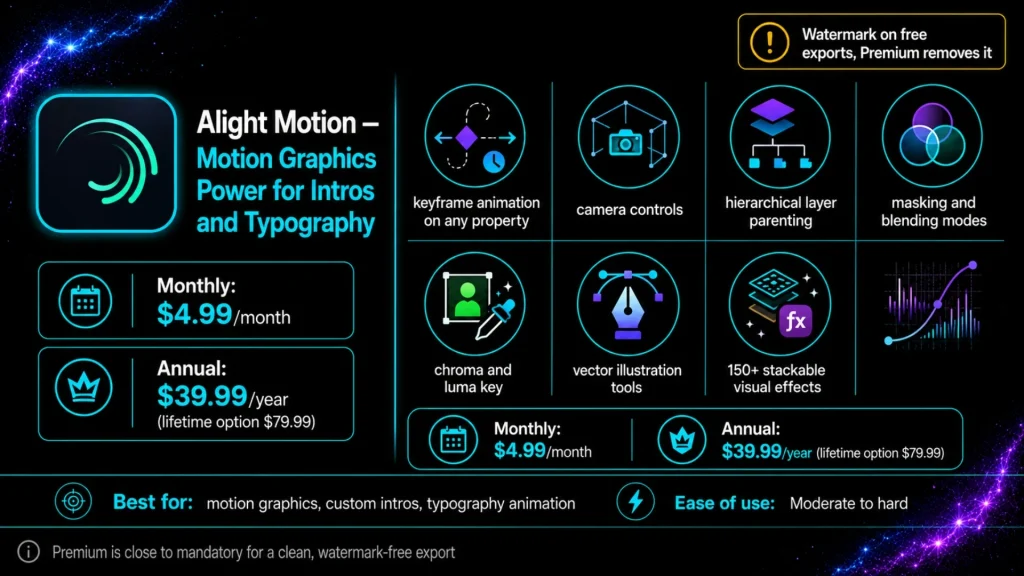
You get precise control over virtually any property, camera movements for building dynamic scenes, hierarchical parenting to link layers, and advanced easing handled automatically. With AI-powered tools assisting your effect stacking, you can easily manage masking groups, blending modes, chroma keying, and over 150 visual effects. This technical depth is why it is a staple in the anime edit, typography, and intro-making communities where CapCut’s simpler effect library reaches its functional ceiling.
Key Features and Pricing
Alight Motion’s toolset reads more like a compositing app than a trim-and-post editor: keyframe animation on nearly any property, camera control for building dynamic scenes, and hierarchical parenting that lets you link layers so a parent’s motion carries down to everything attached to it. Layer in masking groups, blending modes, chroma and luma key, vector illustration, and 150+ stackable visual effects, and you’ve got a toolkit built for custom intros and typography rather than quick social cuts.
Alight Motion is owned by Bending Spoons, the company behind Splice. You should expect a familiar business model: the free version exports with a watermark, while a Premium subscription removes it and unlocks 4K/60fps export capabilities alongside the full effects library. Premium pricing typically runs around $4.99 per month or $39.99 per year, with a lifetime option available near $79.99 depending on your region. There is a 7-day free trial on the annual plan, though you should remember to cancel at least a day before it renews if you are only testing the software.
AlightMotion vs CapCut
Unlike CapCut, which offers watermarks-free exports for free, Alight Motion requires a subscription for a clean export. In exchange, you gain a robust compositing suite that CapCut does not attempt to replicate, including true layer parenting and vector graphics editing designed for motion designers rather than casual social media creators.
Pros, Cons, and Best Use Cases
- Pros: Professional-grade keyframe animation, 150+ visual effects, and built-in vector illustration.
- Cons: Free exports carry a watermark, there is a steep learning curve, and the Premium subscription is effectively mandatory for serious projects.
- Best for: Motion graphics, custom intros, typography animation, and effects-heavy edits that go beyond what standard editors provide.
How to Get Started
Start by creating a short 5 to 10 second animation to learn how to manage keyframes and easing before committing to a full intro or complex edit. It is available on Android as well as iOS and Mac devices with Apple Silicon.
Choosing the Best CapCut Alternatives for Android
Select the app that fits the specific project you are creating rather than the one with the highest download count. If you are uncertain where to start, try VN Video Editor. It feels the most similar to the CapCut workflow and carries no watermark risk, which helps ensure total content ownership of your final export. If you need something faster for a quick social media clip, InShot and YouCut are both excellent choices. YouCut is the more reliable option if your phone is a few years old and lacks high-end processing power.
Splice and Alight Motion require a bit more caution. While they appear free at first glance, they both hide certain features behind paywalls, such as recurring subscription charges or restrictive watermarks. It is wise to review their pricing models thoroughly before you commit to a complex project. When your video needs professional compositing, advanced color grading, or multi-cam synchronization, KineMaster and PowerDirector are the best tools for the job. If you prefer to automate the editing process, Quik by GoPro turns raw action footage into beat-synced highlights automatically, while VITA offers similar convenience for templated vlogs and travel videos.
Regardless of which app you choose, the same rule applies across all nine editors. Export a short test clip first to check for unwanted branding, watermarks, or hidden resolution limits before you invest hours into a full edit. Because free tiers and pricing structures change frequently, what was true last month may not be guaranteed today.
How to Choose: A Quick Recap
If you are still torn, match the app to what you are actually trying to make rather than picking whichever one has the most downloads.
- Want a seamless, multi-track workflow? Go with VN. It is the closest thing to a drop-in CapCut replacement on this list.
- Just need simple cuts with zero branding? Go with YouCut. It is the most reliable option here for staying watermark-free without an extra step.
- Editing for social impact? Go with InShot. Its stickers, filters, and aspect-ratio presets are built for TikTok and Reels specifically, helping you create professional content quickly.
- Running a complex, effects-heavy project? Go with KineMaster or PowerDirector. Both handle features like chroma key, advanced background removal, and layered composites that the simpler apps do not attempt.
Before you commit to any of them, run through this short checklist:
- Watermark rules and any limits on premium exports.
- Export resolution, along with frame-rate options for high-quality playback.
- Storage use, ad frequency, sign-in requirements, and privacy policy.
- Your phone’s RAM, chipset, and free storage space.
Export a five-second clip at your planned resolution and quality settings before you build anything bigger. It takes thirty seconds and saves you from discovering a watermark, a resolution cap, or a login wall halfway through a real project.
Conclusion
The right CapCut alternative isn’t about crowning “the best” app. It’s about matching the tool to whatever you’re actually making that week. A fifteen-second TikTok clip and a color-graded travel montage call for different apps entirely. Only two names on this list come with a real catch worth remembering twice: Splice’s default weekly billing and Alight Motion’s near-mandatory Premium subscription, so read those pricing sections before you commit to either one.
Start with VN or YouCut if you want the safest bet, reach for InShot when speed matters more than depth, and save KineMaster, PowerDirector, or Alight Motion for the day a project actually needs that kind of firepower. None of these swaps ask you to hand CapCut your wallet or your patience. Most won’t even cost you resolution, privacy, or a clean export just to dodge a brand you never chose in the first place.
Install two or three that fit your workflow, run the five-second test export on each one, then keep whichever app disappears into the background while you work. That’s the real measure of a good editor, not the download count sitting next to its name. You can also get the free version of CapCut Pro by downloading and installing the CapCut Mod APK.