
How to Use CapCut Templates to Speed Up Video Editing
Staring at a blank editing timeline at 11 PM is the fastest way to kill your creative spark, but what if you could outsource the hardest parts of video production with a single tap? This guide explores why CapCut templates are the ultimate “cheat code” for modern creators, transforming hours of tedious keyframing and beat-matching into a streamlined, seconds-long process. By leveraging trending formats directly from TikTok and the CapCut app, you can bypass the burnout of manual editing, stay ahead of viral trends, and maintain a high-quality posting schedule without sacrificing your sanity or sleep.
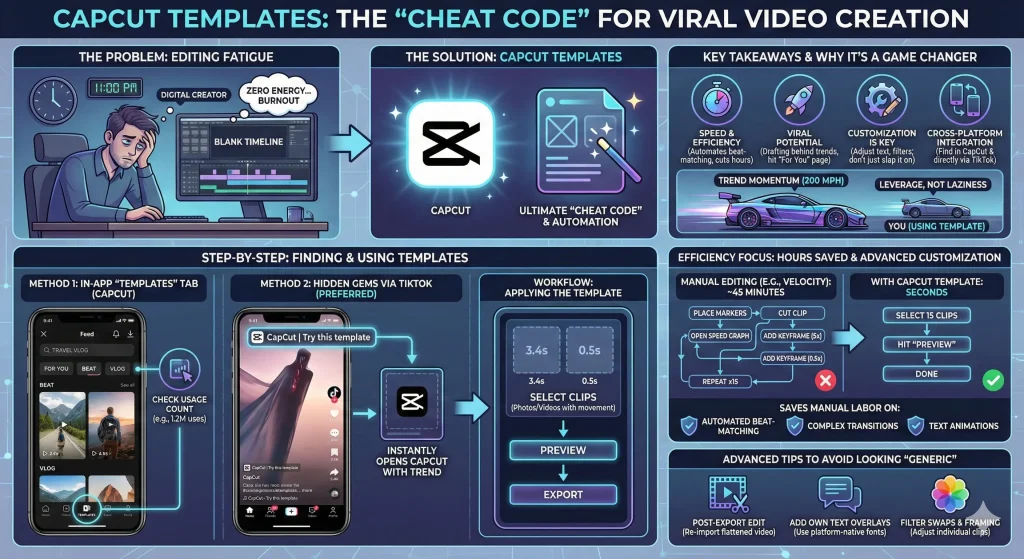
It’s easy to feel like using a template is “cheating” or that it robs your work of its soul, but the reality of today’s fast-paced social landscape is that volume is often just as important as vision. If you’re a solo creator, you aren’t just the director; you’re the lighting tech, the scriptwriter, and the editor. Templates act as your invisible production assistant, handling the technical “math” of a velocity edit so you can spend your limited mental energy on the stuff that actually matters—like your storytelling and your connection with the audience.
Think of it as a shift from being a manual laborer to being a creative director. By embracing these pre-built frameworks, you aren’t just making videos faster; you’re making your content more “algorithmically fluent.” These templates speak the visual language that viewers are already primed to engage with, giving your footage a professional polish that usually takes years of software mastery to achieve. It’s about working with the grain of the internet instead of against it, ensuring that your best ideas don’t end up buried in a folder just because you didn’t have the energy to finish the edit.
Key Takeaways
- Speed & Efficiency: CapCut templates automate complex edits like beat-matching and transitions, cutting hours off your workflow.
- Viral Potential: Using trending templates from TikTok significantly increases your chances of hitting the “For You” page.
- Customization is Key: Don’t just slap on a template; adjusting text, filters, and clip length helps your content stand out.
- Cross-Platform Integration: You can find exclusive templates directly through TikTok’s interface, not just the CapCut app.
Why CapCut Templates Are a Game Changer
Before we get into the “how-to,” let’s talk about why you should even bother. When I first started editing for social, I was a purist. I thought using a template was “cheating.”
I was wrong.
Templates aren’t just about laziness; they are about leverage. The algorithm loves content that fits current trends. Often, a specific template is the trend. By using it, you are essentially drafting behind a race car that’s already going 200 mph. You get the benefits of the trend’s momentum without doing the manual labor of building the engine yourself. Additionally, if you are a beginner, this is the best CapCut tutorial for you because it bypasses the steep learning curve of manual editing.
Step-by-Step: How to Find and Use Templates
Each template typically features example clips, allowing users to preview how their videos will look. This helps in deciding on the best fit for their content. Users can easily import these templates into their own projects and begin editing them, customizing elements like text, colors, and effects to align with their brand or message.
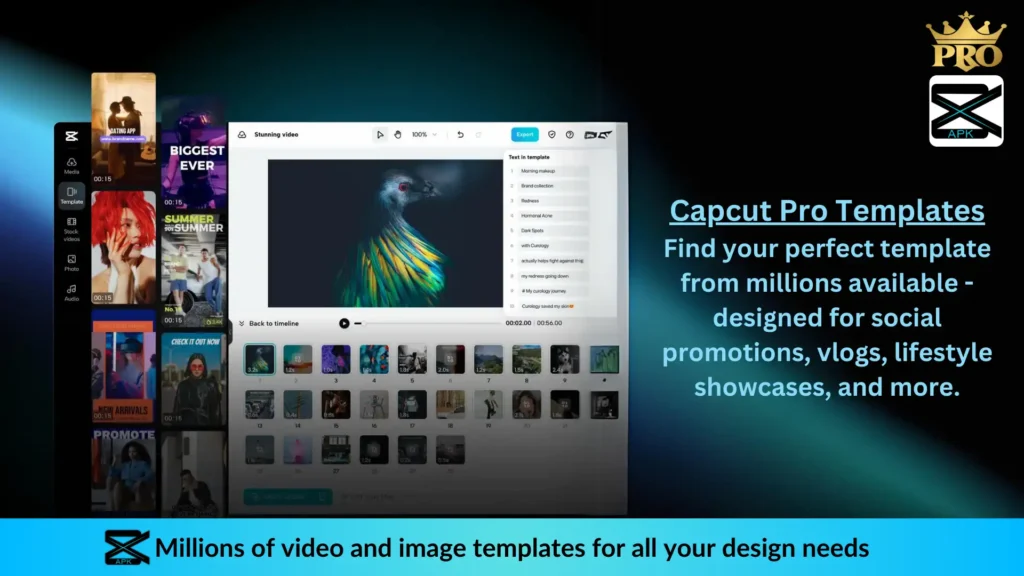
Although many templates are free of cost but there is a vast category of templates that are only available with the Pro Subscription of CapCut. But you can also get the CapCut Pro free of cost.
Browsing Template Categories
CapCut organizes its templates into distinct categories, making it easier for users to explore different styles. Categories can include themes like travel, food, fashion, and more. By selecting a specific category, users can efficiently find templates that resonate with their content creation goals.

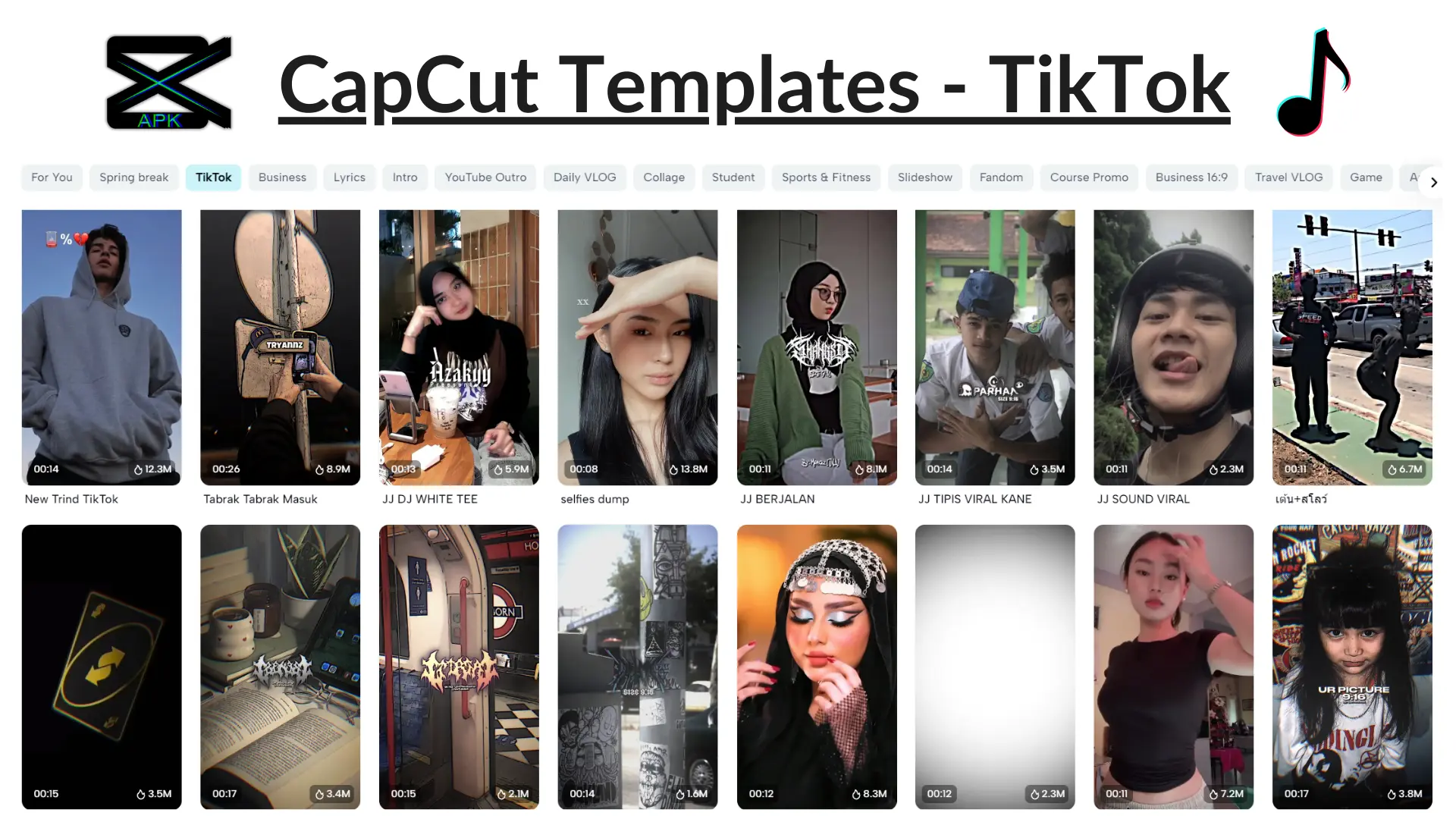
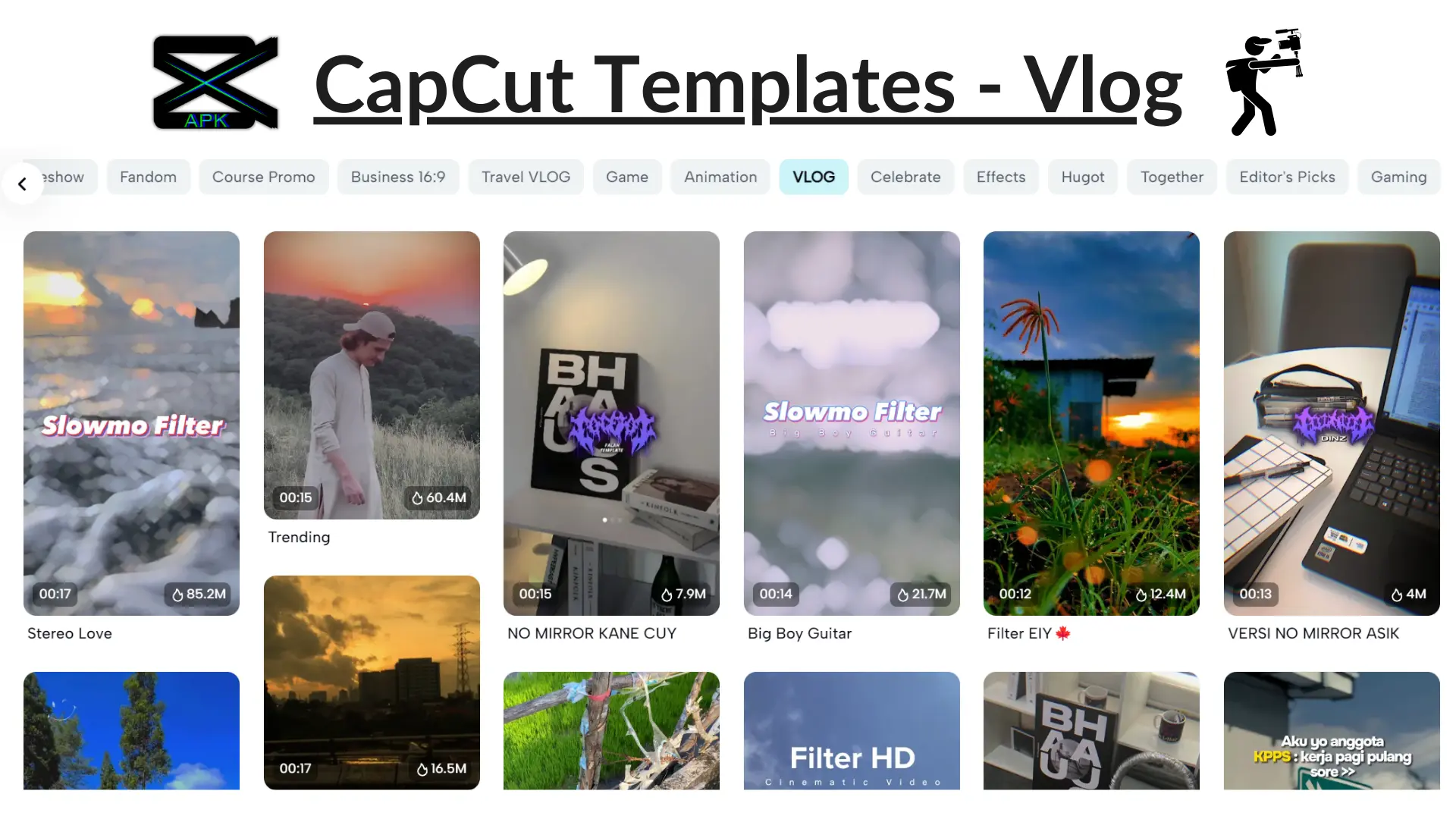


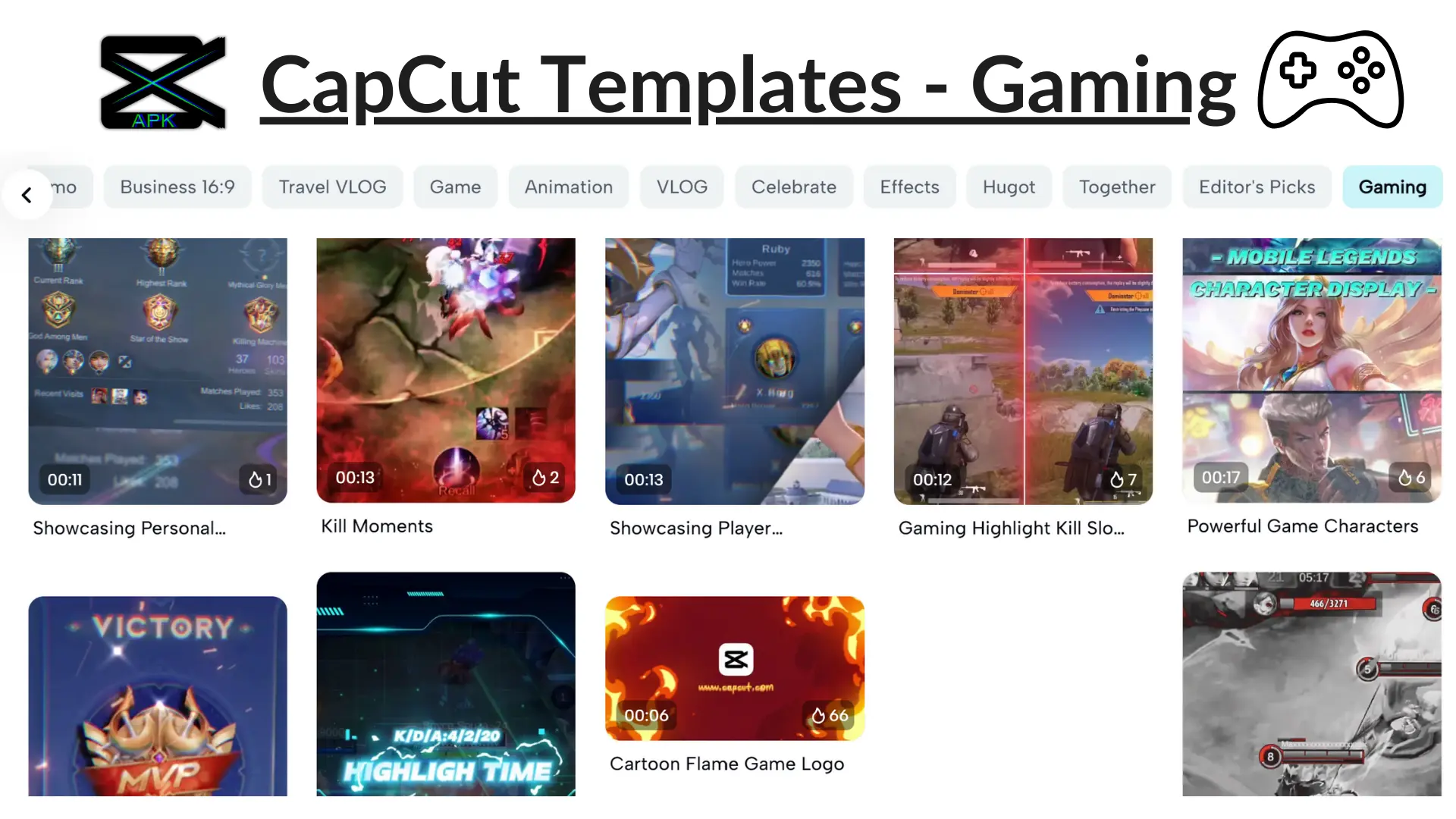
When browsing, users may also notice branding opportunities within the templates, as many are optimized for popular platforms like TikTok and Instagram. The structured layout allows users to focus on the aesthetic that suits their audience best. This ensures that their video content maintains a professional appearance while still conveying their unique narrative.
Okay, let’s dive into the actual steps. There are two main ways to find these templates: inside the CapCut app itself, and through TikTok.
Method 1: Finding Trending Templates in the App
The CapCut app is basically a social network for editors now. It features a massive library of user-generated templates that are updated daily.
- Open the CapCut App: At the bottom of the screen, you’ll see a tab labelled “Templates” right next to “Edit.” Tap that.
- Browse the Feed: This feed works just like TikTok. You can scroll down to see what’s popping off right now. You’ll usually see categories at the top like “For You,” “Beat,” “Lyric Video,” or “Vlog.”
- Search Specifics: If you know what you want—say, a “Travel Vlog” or a specific meme format—use the search bar at the top.
- Check the Usage Count: A good indicator of a quality template is the usage number. If you see “1.2M uses,” you know it’s a verified banger.
Method 2: Finding Hidden Gems via TikTok
This is my preferred method because it guarantees the template is actually trending on the platform where you want to post.
Have you ever been scrolling TikTok and seen a video with a little button above the creator’s username that says “CapCut | Try this template”? That is your golden ticket.
- Spot the Button: When you see a video using a cool effect, look for that button anchor.
- Tap “Use Template in CapCut”: This will instantly switch apps on your phone, opening CapCut and loading that specific template.
- Why do this? Trending TikTok templates often originate on TikTok first. By the time you find them in the generic CapCut search bar, the trend might be dying down. Grabbing them directly from the source keeps you ahead of the curve.
The Workflow: Applying the Template
Once you’ve found a template you like, the process is incredibly straightforward. But there are a few nuances to make it look polished.
Replacing Clips
When you tap “Use Template,” CapCut opens your phone’s camera roll.
- Look at the placeholders: At the bottom of the screen, you will see boxes representing the clips needed. They usually have time indicators like “3.4s” or “0.5s.”
- Select your footage: Tap your videos or photos in the order you want them to appear.
- Preview: Hit “Preview” to see a rough cut.
Pro-Tip:
If a template requires a lot of short 0.5s clips (common for beat-sync trends), don’t use long, slow-panning landscape shots. Use photos or videos with distinct movement. The quick cuts need clear, punchy visuals to register with the viewer.
Adjusting the Audio
Most templates come with pre-loaded audio. This is usually the trending sound associated with that template. However, sometimes the audio gets muted due to copyright when you export.
If you plan to post on TikTok:
- Export the video from CapCut.
- Upload to TikTok.
- “Add Sound” inside TikTok and find the song that matches the trend.
- Turn the “Original Sound” (from the video) to zero and the “Added Sound” (from TikTok) to 100. This ensures the algorithm credits the song correctly, which helps your reach.
Advanced Tips: Customising So You Don’t Look “Generic”
One of the biggest risks with templates is that your video looks exactly like 50,000 other videos. To speed up video editing without sacrificing your brand identity, you need to tweak the output.
Here is how I customise templates to make them unique:
1. The Post-Export Edit
Many users stop once the template is applied. Don’t be that person. Once you export the video from the “Template” mode, re-import it into a new CapCut project as a regular video file. Now you have a flattened video file that you can edit further.
2. Add Your Own Text Overlays
Most templates come with generic text like “My 2023 Recap.” Delete or edit that text within the template if allowed. If not, wait until you are in the final editing phase (or inside TikTok) to add your own captions. Using the native text fonts of the platform (like the classic TikTok font) often performs better than the stylized text built into some CapCut templates because it feels more native to the app.
3. Filter Swaps and Color Grading
Templates often apply heavy filters. Sometimes they look great; other times they blow out the highlights or crush the blacks. While you are in the “Select Clips” phase of the template workflow, you can often tap on an individual clip and hit “Edit.” This lets you crop the image or adjust the framing so the most important part of your video isn’t cut off by the template’s aspect ratio.
Efficiency Focus: How Templates Save You Hours
We talked about editing fatigue earlier. Let’s look at the hard numbers on how this actually saves you time. If you were to manually edit a “velocity” style video—where the speed ramps up and down to the beat of a song—here is what that looks like manually:
- Place marker on every drum beat.
- Cut clip.
- Open speed graph.
- Add keyframe.
- Pull speed up to 5x.
- Add second keyframe.
- Pull speed down to 0.5x.
- Repeat for 15 clips.
That is easily 45 minutes of work for a 15-second video.
With a CapCut template:
- Select 15 clips.
- Hit “Preview.”
- Done.
Here are the three specific areas where templates save the most manual labor:
1. Automated Beat-Matching
Syncing cuts to music is tedious. You have to listen, pause, cut, listen, and nudge frames back and forth. CapCut video editing tips often focus on “auto-beat” features, but templates take it a step further. They have pre-determined cut points that are millisecond-perfect to the trending audio. You drop your footage in, and it snaps to the rhythm instantly.
2. Complex Transitions
You know those cool “3D Zoom” or “Invisible Cut” transitions? Doing those manually requires masking, keyframing scale and position, and adding motion blur effects. Templates have these effects baked into the transition slots. You get high-production value transitions without touching a single keyframe graph.
3. Text Animations and Motion Graphics
Some templates, specifically for vlogs or intros, come with kinetic typography (moving text). animating text in CapCut from scratch is doable, but time-consuming. Using a template for your “Intro” segment allows you to have professional motion graphics that you just swap the words out for.
Final Thoughts
Look, there is a time and place for deep, manual editing. If you are making a documentary or a YouTube video essay, take your time. But for short-form vertical video? The game is speed and volume. Knowing how to use CapCut templates isn’t just a shortcut; it’s a survival mechanism for the modern creator. It allows you to participate in trends instantly, maintain a high posting frequency, and keep your sanity intact. So next time you see a trend taking off, don’t groan about the editing time. Find the template, drop in your clips, and hit post. Your future self (and your sleep schedule) will thank you.